
Menu
 Last updated on June 23, 2026
A menu enables the user to select a link or control from a dropdown.
On this page:
How to use this component
A menu's design and behaviour is conceptually similar to a select. Use a menu to enable the user to take an action (for example, navigating to a different view or page.)
Menus are useful for:
- Navigation (e.g. a list of secondary links)
- Controls (e.g. "Copy" or "Delete" actions)
They are commonly used as a fallback for site navigation at smaller viewport sizes.
Do not use menus in forms or other data input contexts — use a select instead.
Structure and behaviour
A menu is activated via a trigger element, commonly a button.
Anatomy
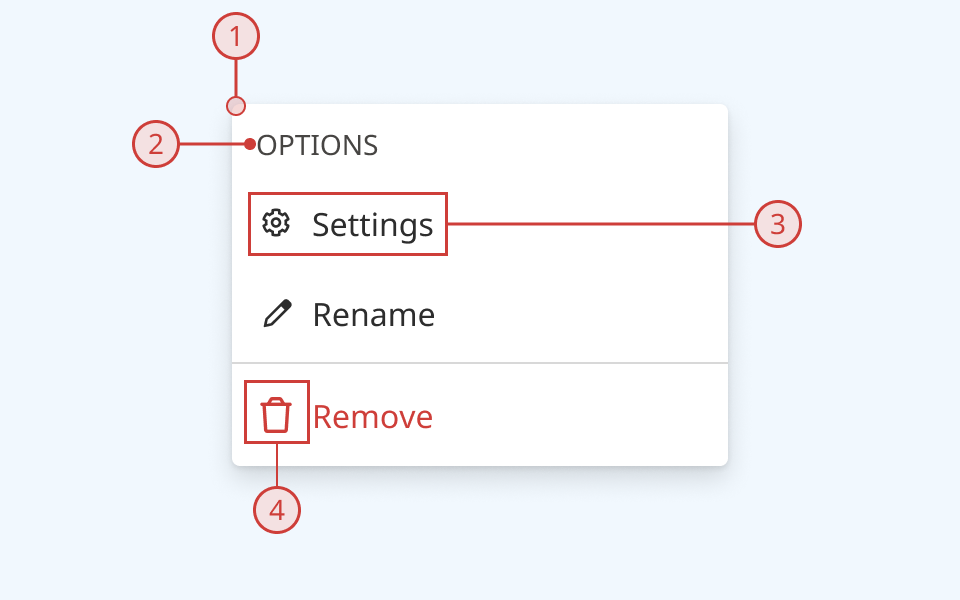
- The menu opens inside a popover, anchored to its trigger element
- The popover is distinguishable from its surrounding context via a border, rounded corners and a drop-shadow effect
- Menus can be organized into sections
- A text label is displayed at the top of each section
- A solid divider visually separates each section
- Each menu item must have a visible text label
- Menu items can also display an icon to the left of its label
Design guidance
Design system components are published in a Figma library. Install the library and add it to your project to start using this component.
Dropdown are useful for reducing clutter and cognitive load in a user interface, particularly when space is limited.
They should be used sparingly. Avoid placing critical controls or navigation items inside a menu where possible.
Limit the number of items inside a menu to a maximum of 10-15. Very long dropdown menus can become unwieldy, particularly on smaller screens. Use sections and/or submenus to logically organize complex menus.
A menu's trigger element must have a descriptive label. This can be either visible text (recommended) or an aria-label attribute.
Technical information
Detailed technical documentation, interactive previews and code samples are published in the B.C. Design System Storybook.
A reference implementation of the menu component in React is published in the React components library. Install the package via npm to start using the component.
Menu ships with various subcomponents that can be stacked together to compose more complex menus:
- MenuTrigger: wrapper component that connects the trigger element and the menu
- MenuItem: used to populate individual items within a menu
- MenuSection: used to create separated sections within a menu
- SubmenuTrigger: enables nesting of menus to create sub-menus
You can compose a static menu using these subcomponents, or dynamically by passing an array of items and/or sections.
Events and props
The menu component is a styled version of the React Aria Menu. Refer to the React Aria documentation for detailed information about its API.
Accessibility
These summaries reflect the component used as provided. If you modify it, confirm that your changes comply with the Web Content Accessibility Guidelines (WCAG). B.C. government digital services are required to meet the WCAG Level AA standard.
| Requirement | WCAG Success Criterion | Validation |
|---|---|---|
| Make sure visual formatting is represented in the backend code | 1.3.1 (Level A) |
Trigger element and popover are automatically associated via an aria-labelledby attribute |
| Make websites keyboard accessible | 2.1.1 (Level A) |
Menu and menu items are focusable and fully operable using only the keyboard, with visual indicators for focused elements |
| Prevent keyboard navigation traps | 2.1.2 (Level A) |
When in focus, the user can exit the menu by pressing the 'Escape' or 'Tab' keys |
| Ensure content reads in the right order for people using assistive technology | 2.4.3 (Level A) |
Focus moves through list options vertically from top to bottom |
| Show where the keyboard is active on the screen | 2.4.7 (Level AA) |
Focused elements are indicated with a solid background fill |
| Make sure components can be read and used by assistive technology | 4.1.2 (Level A) |
The menu, its items and its trigger element are associated via aria-labelledby attributes. Menu has the menu role. Individual menu items have the menuitemradio role. |