
Progress indicators
 Last updated on April 9, 2026
A progress bar or progress circle visualizes the progress of a process or operation.
On this page:
How to use this component
Progress indicators are used to visualize the progress of a process or operation. They are commonly used in:
- Loading screens or interstitials
- Upload or download interfaces
Use a progress indicator to communicate to the user that something is happening in the background. They can also be used in to communicate progress towards completion in a multi-step process like a form.
Structure and behaviour
Progress bar
Anatomy
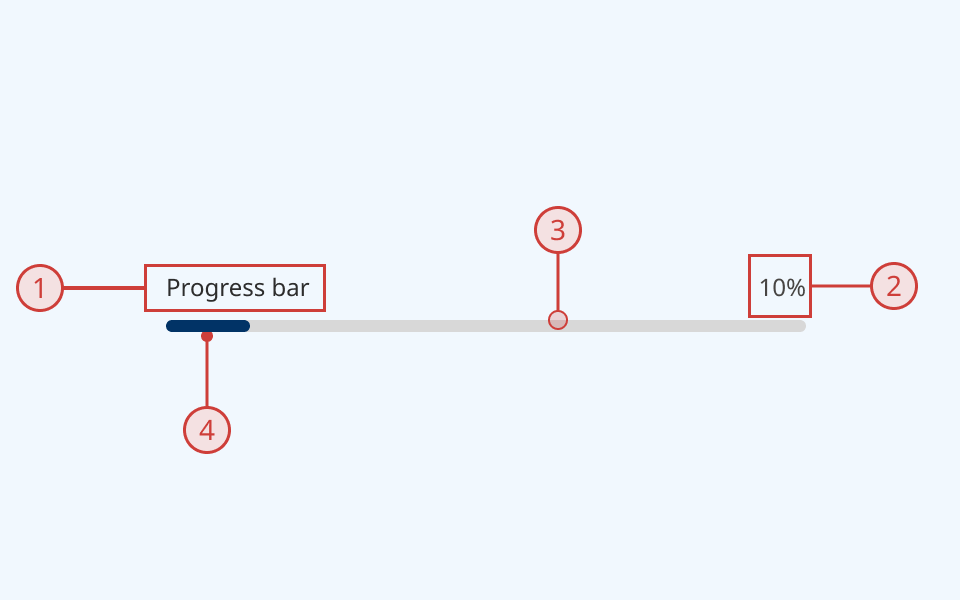
- Text label
- Value label
- Progress bar track, illustrating total length of process
- Progress bar fill, illustrating progress towards completion
Behaviour
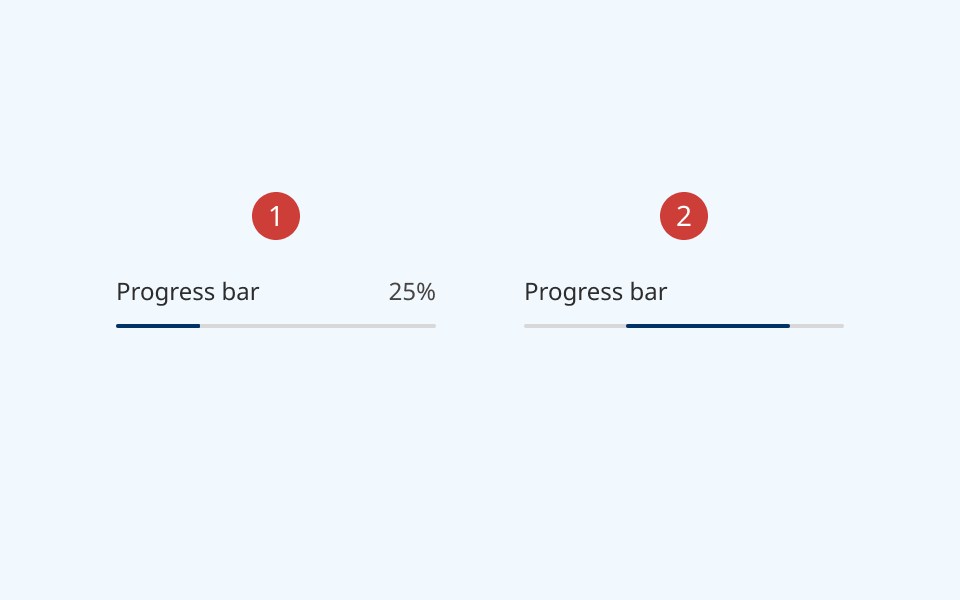
- Determinate mode: track fills linearly from left to right
- Value label is displayed to provide additional context
- Indeterminate mode: partial fill loops from left to right until completion
- No value label is displayed
Progress circle
Anatomy
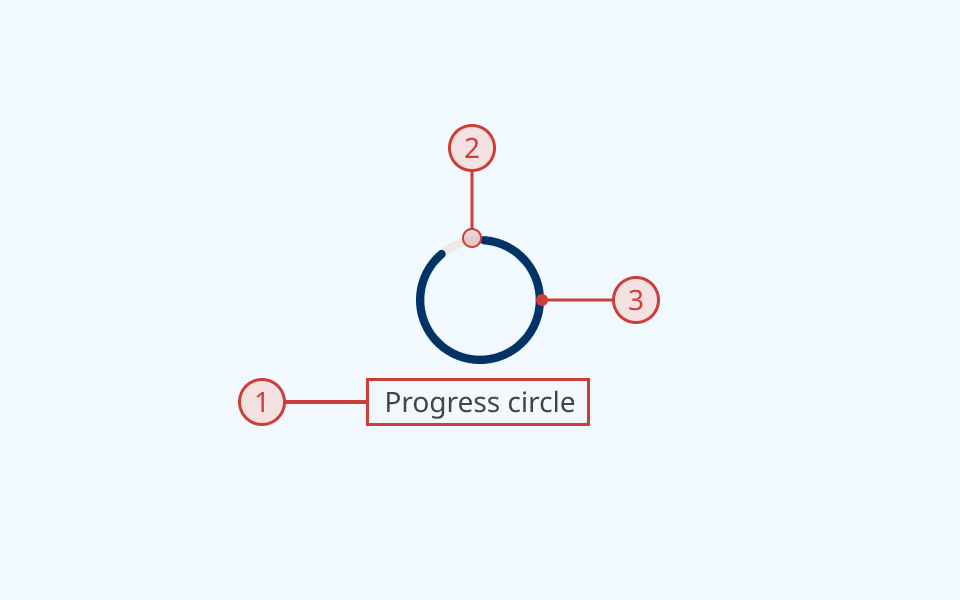
- Text label
- Progress circle track, illustrating total length of process
- Progress circle fill, illustrating progress towards completion
Behaviour
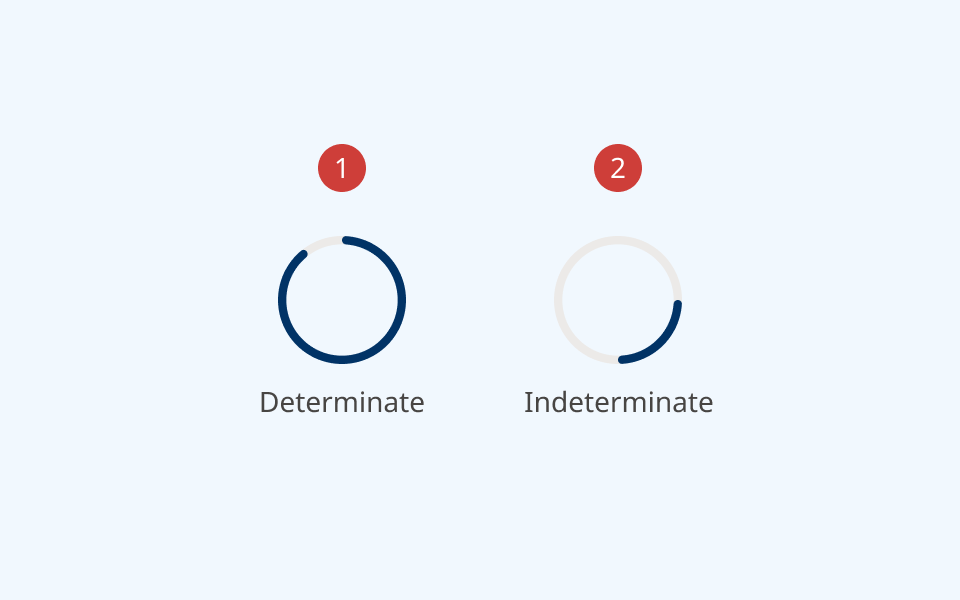
- Determinate mode: track fills linearly in clockwise direction
- Indeterminate mode: partial fill loops indefinitely in clockwise direction until completion
Design guidance
Design system components are published in a Figma library. Install the library and add it to your project to start using this component.
The design system provides two progress indicator components:
- Progress bar: a horizontal bar
- Progress circle: a circular loader, useful when space is limited
Progress indicators can be either:
- Determinate: progressing linearly from left to right, from 0% to 100%
- Indeterminate: looping indefinitely until completion
Use a descriptive label to communicate what is happening. Do not display multiple progress indicators at the same time.
Technical information
Detailed technical documentation, interactive previews and code samples are published in the B.C. Design System Storybook.
Reference implementations of the progress bar and progress circle components in React are published in the React components library. Install the package via npm to start using the components.
Events and props
Both components are styled versions of the React Aria ProgressBar.
Refer to the React Aria documentation to understand its structure and API.
Accessibility
These summaries reflect the component used as provided. If you modify it, confirm that your changes comply with the Web Content Accessibility Guidelines (WCAG). B.C. government digital services are required to meet the WCAG Level AA standard.
| Requirement | WCAG Success Criterion | Validation |
|---|---|---|
| Make sure visual formatting is represented in the backend code | 1.3.1 (Level A) |
Label and progress bar/circle are automatically associated via an aria-labelledby attribute |
| Enhance visual contrast for user interface and graphics | 1.4.11 (Level A) | Contrast ratio between the progress bar track and fill exceeds 3:1 |
| Support user preferences for motion, and eliminate unnecessary motion effects | 2.3.3 (Level AAA) |
Indeterminate state respects prefers-reduced-motion, replacing the looping animation with an alternative slow fade/pulse |
| Make sure components can be read and used by assistive technology | 4.1.2 (Level A) |
The progress bar/circle is automatically associated to its label via an aria-labelledby attribute, and has the "progressbar" role |