
Time field
 Last updated on April 9, 2026
A time field enables the user to enter a time value into an interface or form.
On this page:
How to use this component
A time field enables the user to enter a time value into a form or interface. They are commonly used in booking or scheduling interfaces.
A time value accepts only a single value, not a range. To receive a date-time value, use a date picker. You can also use a time field and a date picker together, and combine the received values after submission.
Structure and behaviour
Anatomy
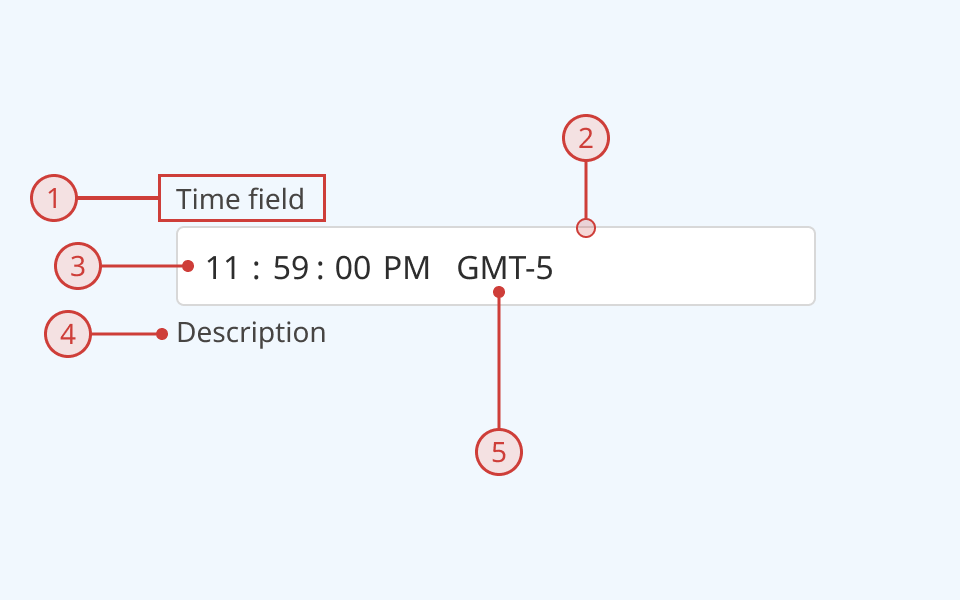
A time field has:
- A text label, to explain the purpose of the input
- A light border around the input field
- Individually-selectable and editable segments for each part of the time value
- Additional description or helper text (optional)
- Time-zone value (optional)
An error message can also be displayed below the description when needed.
The time field supports the following states:
- Hover
- Focused/selected
- Invalid
- Disabled
- Read-only
Behaviour
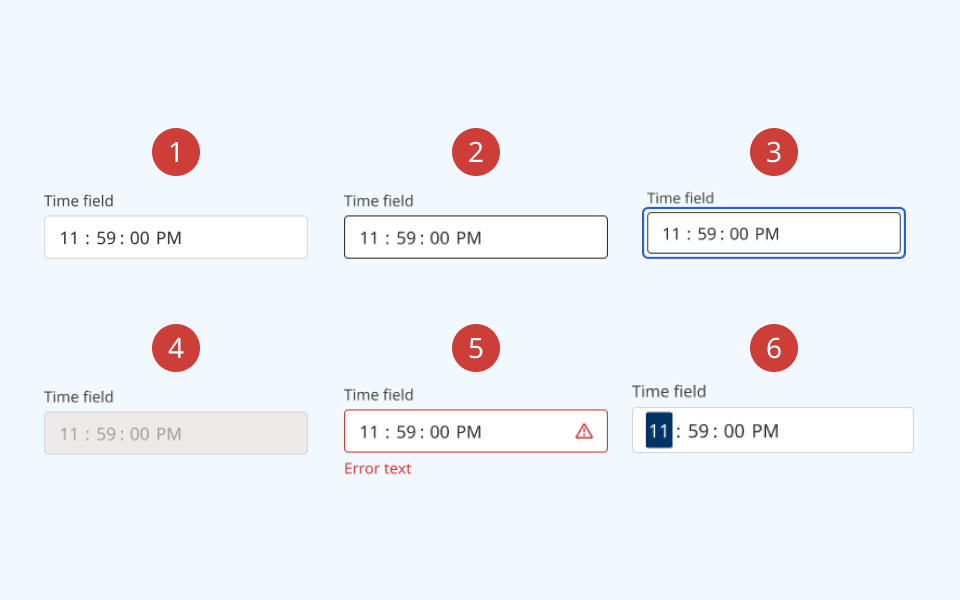
- At rest, the time field is in its default state
- On hover, the border colour and cursor visibly change
- When the time field is keyboard-focused, an offset blue focus ring appears around the input
- When a time field is set to disabled:
- The background colour on the input changes to grey
- A cursor indicator is shown on hover to indicate that it is disabled
- A disabled text field cannot be focused or interacted with
- When an input is invalid:
- The border colour changes to red
- A red 'error' icon is displayed on the right side of the input
- A red error message is rendered below the date picker
- When the user selects the time value:
- The currently-selected segment is highlighted
- The user can change the value by typing or using the up and down arrow keys
- The user can move between segments using the left and right arrow keys
Design guidance
Design system components are published in a Figma library. Install the library and add it to your project to start using this component.
A time field's value is divided into individual segments for hour, minute and second. You can configure the granularity to set the smallest visible segment.
Each segment is individually focusable, and can be set by typing in individual digits or incrementing/decrementing with the arrow keys.
Time fields are highly modular. All of its parts (except the input field itself) can be shown or hidden as needed, depending on your use case.
If your use case requires hiding the input label, you must also provide a non-visible label using the aria-label property.
Technical information
Detailed technical documentation, interactive previews and code samples are published in the B.C. Design System Storybook.
A date picker receives a date or date/time value as an ISO 8601 string. It is designed to work with objects from the @internationalized/date package (for example, Time, CalendarDateTime, or ZonedDateTime.)
The format and time-zone are set automatically based on the user's locale.
Events and props
The time field component is a styled version of the React Aria time field component. Refer to the React Aria documentation for detailed information about its API and supported props.
Accessibility
These summaries reflect the component used as provided. If you modify it, confirm that your changes comply with the Web Content Accessibility Guidelines (WCAG). B.C. government digital services are required to meet the WCAG Level AA standard.
| Requirement | WCAG Success Criterion | Validation |
|---|---|---|
| Make sure visual formatting is represented in the backend code | 1.3.1 (Level A) |
Label and input field are automatically associated via an aria-labelledby attribute |
| Clearly define the purpose of input fields | 1.3.5 (Level AA) |
The input has a visible label, used to explain its purpose. Note: if you hide the visible label, you must use aria-label to provide a semantic label |
| Make websites keyboard accessible | 2.1.1 (Level A) |
Input field and segments are focusable and fully operable using only the keyboard, with visual indicators for focused elements |
| Prevent keyboard navigation traps | 2.1.2 (Level A) |
When in focus, the user can exit the input field by pressing the 'Tab' key |
| Show where the keyboard is active on the screen | 2.4.7 (Level AA) |
Focus is indicated with a visible and offset secondary border around the input field and individual segments |
| Make sure interaction or click targets meet a minimum size | 2.5.8 (Level AA) |
The input field has a minimum target area of 32px by 32px |
| Ensure user interface components behave predictably | 3.2.1 (Level A) |
Input value does not change and is not submitted on focus |
| Make sure components can be read and used by assistive technology | 4.1.2 (Level A) |
The input field is automatically associated to its label via an aria-labelledby attribute, and has the input role |