
Graduation Records and Achievement Data (GRAD) collection procedures
 Last updated on March 11, 2026
The transfer of demographic and course data between schools and the ministry is necessary for the administration of assessments, and for the ministry to produce transcripts and certificates.
Schools send data to the ministry for students who are completing grades 10-12 courses or intending to write Provincial Graduation Assessments. Files also include citizenship and address information for allocating awards under the Provincial Scholarships Program.
Data must be sent through the Education Data Exchange using the Graduation module on the EDX Dashboard.
On this page
- Data submission
- Error management
- Find student in data submissions
- GRAD system reports
- Current students in GRAD system
Data submission
Important: Files submitted by 4 pm (PST) will update reports overnight. Submissions after 4 pm will update the following day.
- Click the "Graduation" tile to access the Data Submission page and upload files for the school
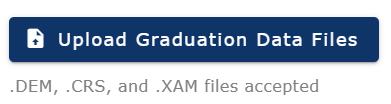
- Click on the “Upload Graduation Data Files” feature:
- Click the “Browse” button, locate the folder in which the .DEM, .XAM and .CRS extracts were saved and select all three files in the window
- Click the “Open” button at the bottom of the window
- Wait for files to upload and close the window
- When all three files are uploaded, processing will begin
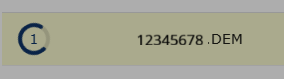
The spinning wheel will show your number in the processing queue along with other users that may be uploading files at the same time. - Processing times vary depending on the file size and the number of other users uploading at the same time. You may wait for processing to finish, or log out and return later to check the results. A green check mark indicates when an upload has been processed. Review the data submission report for any errors
Error management
- Click the “View Reports” link when it appears next to your latest submission
Errors mean data was not loaded and will prevent student information from appearing on transcripts or reports. You must correct the data to update the student record. Warnings are informational, and the school can decide if further action is needed. - Use the filter button to review in more detail
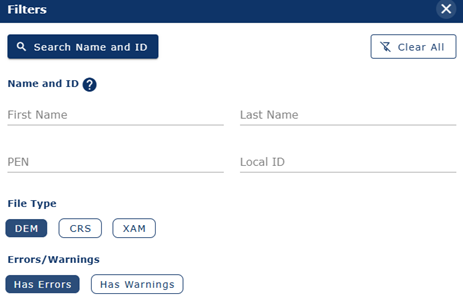
Example: To search for .DEM file errors only, select File Type 'DEM' and 'Has Errors'. You can reset filters by clicking on the 'Clear All' button. Screenshot below shows filter options in EDX interface.
- When reviewing errors or warnings, find more information by clicking the icon in the last column, which will allow you to review the data submitted for that student
- Data flagged as an error is not loaded, which will affect a student's transcript or graduation status. Errors must be resolved in the school database and the .DEM, .CRS, .XAM files must be resubmitted
- Continue to check for new reports after each resubmission to see if any errors remain. Continue to correct and resubmit as needed
Find student in data submissions
Use this menu to find the submission history for any student included in the school’s .DEM, .CRS, .XAM files for the current and previous reporting cycle.
- Enter the student’s PEN and click "Search"

- Review the school’s most recent submission record for the student. The submission date is on the right

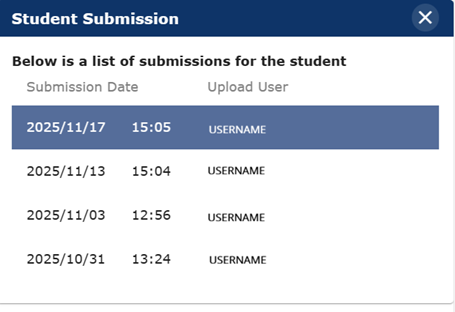
- Click the date field to open the student's full submission history. Click on any entry to review what was submitted on the dates listed (if multiple) and by which school user
GRAD system reports
Use this menu to view individual student and summary reports related to graduation.

When files are submitted by 4 pm (PST), the following GRAD System Reports should update overnight.
- Transcript Verification Reports (TVR)
- Student Transcripts Previews
- Projected Non-Graduates - Summary Report
- Graduation Summary Reports
Reminder: Individual student reports will only update when a student's data has changed.
- Enter a student PEN to find their Transcript Verification Report, transcript or XML preview
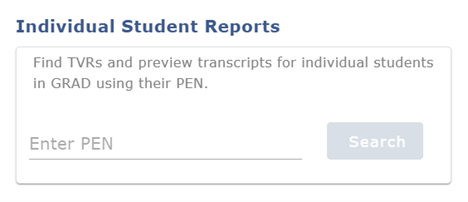
- Summary reports for the school can also be viewed on this page. If you are logged in as a district user, you will need to first select the school to access any summary reports
Current students in GRAD system
Use this menu to view any students who are current in the ministry’s GRAD system database, where your school is the School of Record (SOR) for transcript purposes.
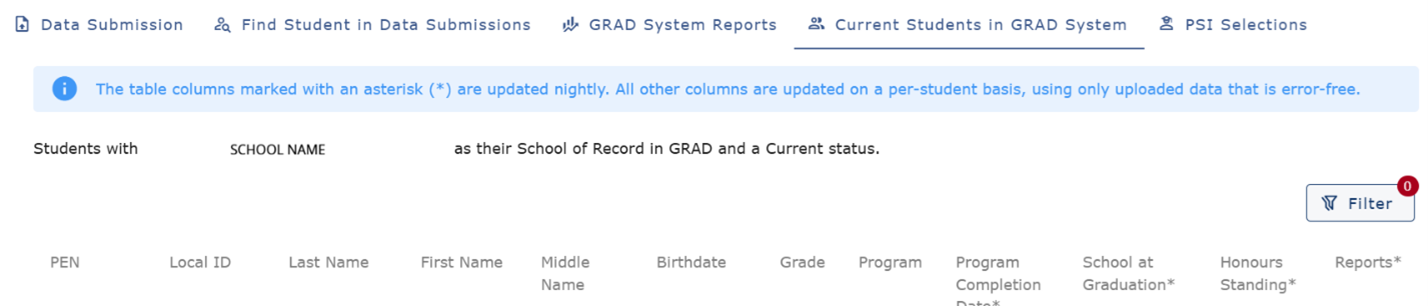
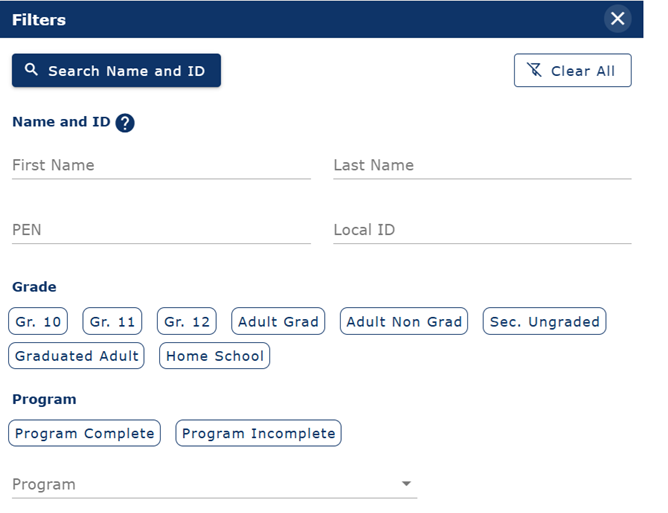
- Click "Filter" to view students in this list by PEN and ID, grade level, program or completion status
Important: The School of Record (SOR) is responsible for submitting school percentages for all courses to the ministry, including percentages for those courses taken at another school. If you are not the SOR, report the course marks to the SOR for inclusion in the next data transfer to the ministry.
If students are included in your .DEM, .CRS, .XAM file submissions, the system will automatically set your school as the SOR.