
Step-by-step guide to renew your registration
 Last updated on September 16, 2026
On this page
Important information before you start your renewal
-
Check if there have been updates to the provincial principal residence requirements in your area or the local government bylaws
-
Note: Check your local government bylaws as they are part of your terms and conditions for registration. If there is a principal residence requirement in the bylaw, this will be enforced.
-
-
Make sure all documents required are in PDF or JPEG format and are ready to be uploaded
-
Once you select "Proceed to Payment," you will not be able to edit your application further
-
You can start your renewal up to 40 days before your expiry date. It is recommended to complete the renewal process early as it may take 3-4 business days for the payment to be finalized
-
Accepted payment methods include credit card and pre-authorized debit
Log in to the Short-Term Rental Registry Dashboard
-
To renew your registration or submit a new application, login to the Short-Term Rental Registry Dashboard
-
For questions on the login/creating a new account process refer to Short-Term Rental Registration Guide for Hosts (pp. 3-8) (PDF, 3.5MB)
Choose login method
On the login screen, you can login using a BC Services Card, or BCeID. In most cases, you will use the BC Services Card.
-
For individuals located within Canada, login using the BC Services card option
-
For individuals located outside Canada, you will need to login by using your BCeID login information. The following steps provide instructions for BC Services Card users. If you need assistance with a BCeID login, please contact us
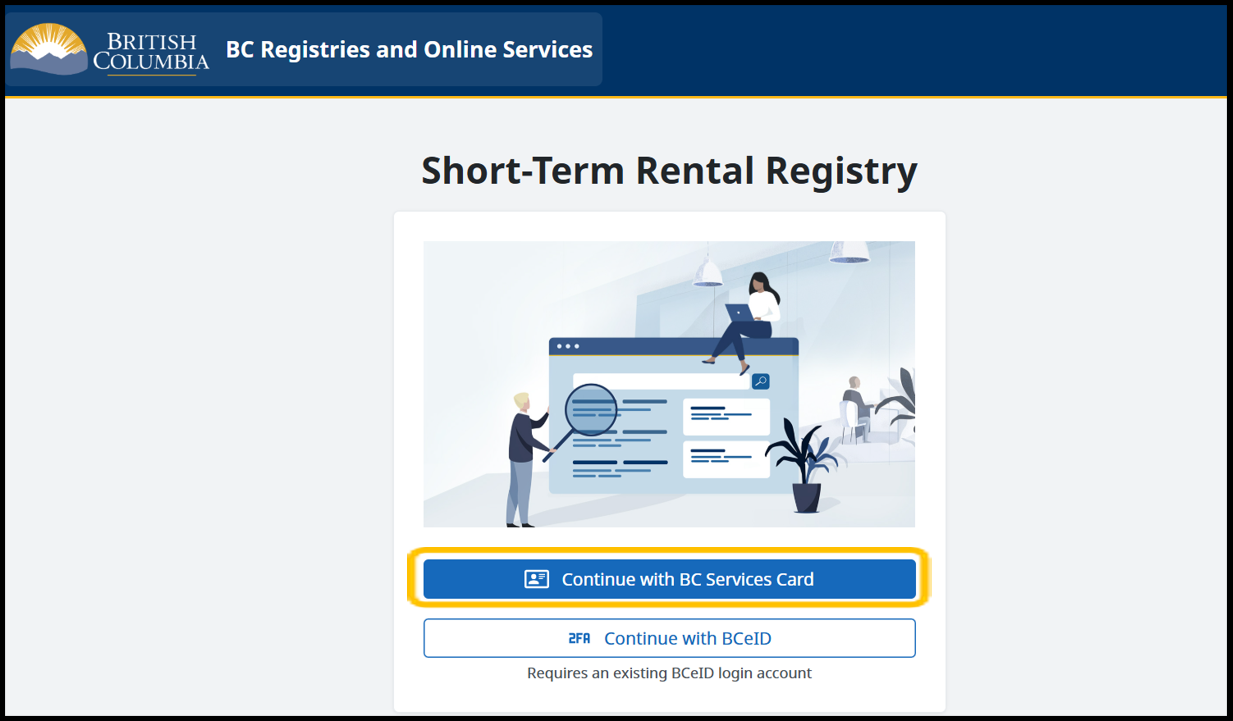
Log in using the BC Services Card app
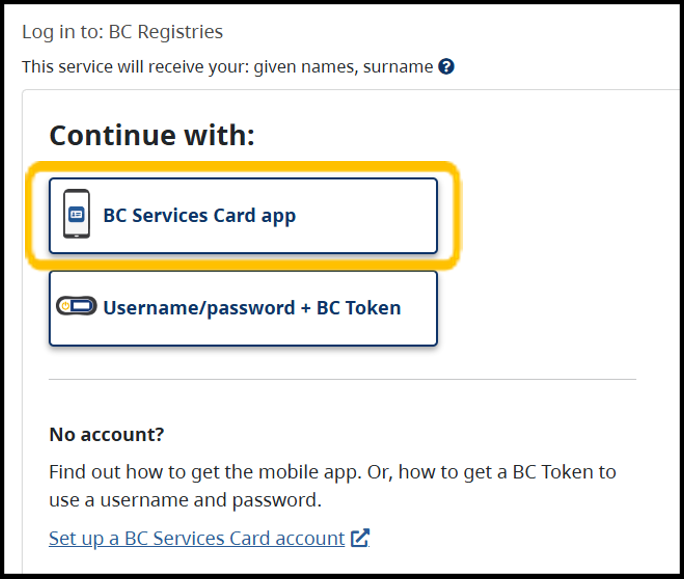
On the next screen, choose to continue with the "BC Services Card app"
-
Follow the on-screen instructions to log in using the BC Services Card app
BC Services Card user guides
Help logging in with BC Services Card
For additional help on how to login from a phone or computer, review the following user guides:
Need to create an account? (Canadian residents only)
-
Follow the guide here to create a new account
-
For non Canadian residents, register for a BCeID here
-
If you need additional help with the BC Services Card app, you can view additional user guides
Find the registration you need to renew
-
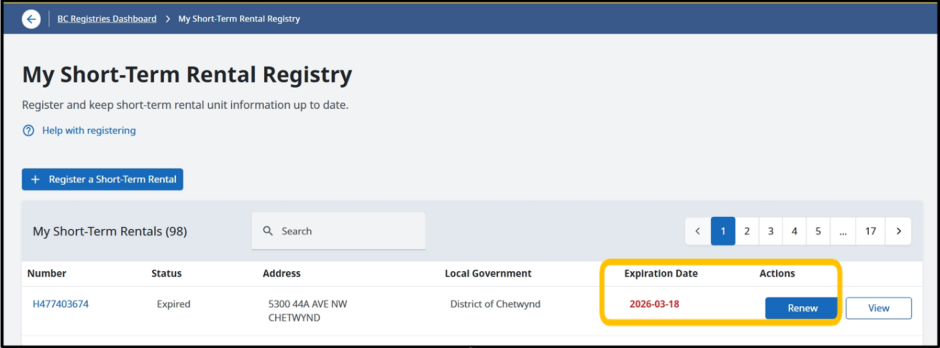
Once you have logged into your Short-Term Rental Registry Dashboard, locate the registration that you need to renew
-
If your registration expiry date is within 40 days, you will see a "Renew" button under the "Actions" column
-
Select the "Renew" button for the registration that you want to renew
-
You can also start the renewal by clicking the "View" button for your registration. Once you are in the detail view of your registration, start the renewal by clicking "Renew"
Changing the short-term rental host or property address
In some cases you will need to create a new registration instead of renewing your existing registration. Some of these include updates to:
-
Property Host/Owner Information: To update the property host information (e.g. name or residential address), you will need to submit a new application. Please note: If you are a property manager, you should not enter your information as the property host (owner).
-
Short-Term Rental address change: If your short-term rental address has changed, you will not be able to update your short-term rental address on your renewal application. Instead you have the following options:
-
You can contact us to update it on your behalf and include the rental unit address and registration number in the subject (STRregistry@sbc.gov.bc.ca)
-
You can submit a new application with the updated address
-
Complete the renewal application form
1. Review the registration details to ensure all information is up to date and accurate
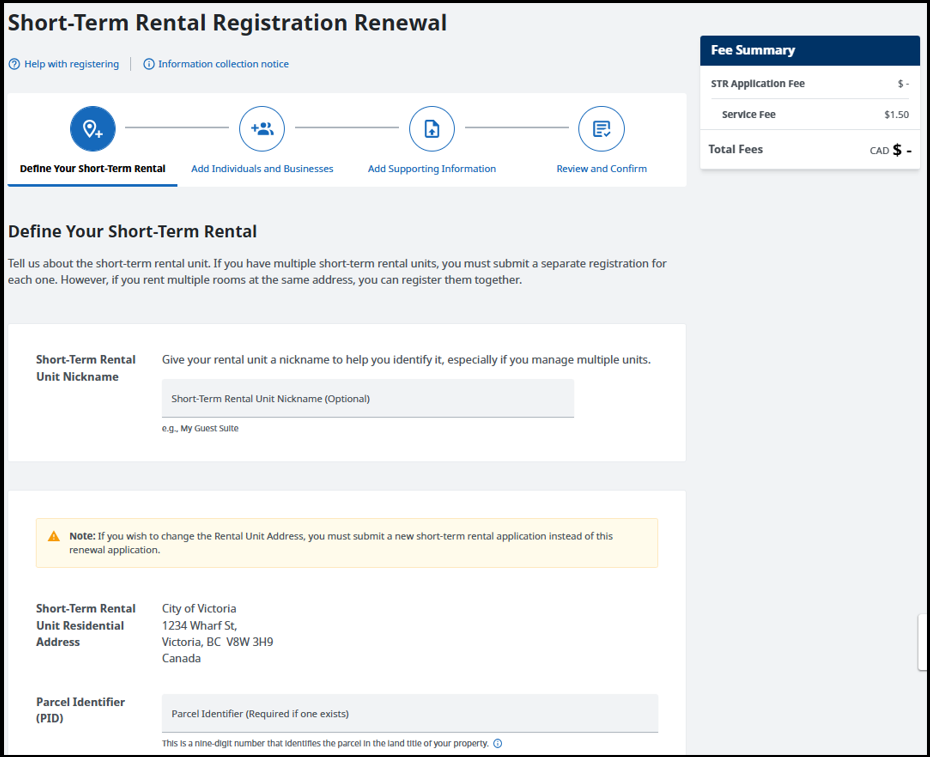
2. Follow the steps in the application adding information as required to complete the form
-
To proceed to the payment screen, both the confirmation and authorization check boxes must be filled in
-
Once you select "Proceed to Payment," you will not be able to edit your application further
-
To learn more about renewal fees, view our renewal fee breakdown
-
Once you have completed each stage of the application, click "Proceed to Payment" to proceed to the payment screen
Complete payment for the renewal
-
Once you have finished the renewal application form, you must complete payment to submit the application
-
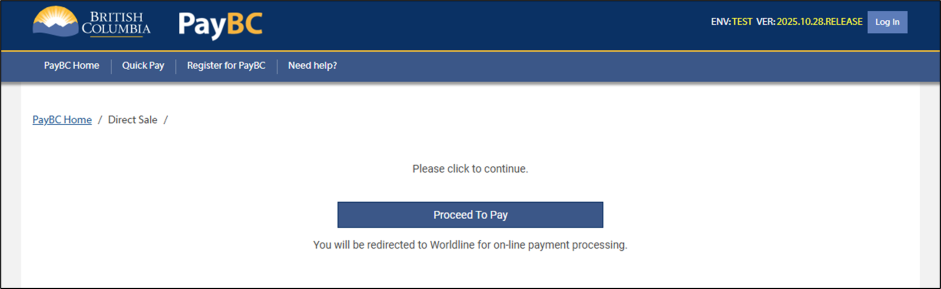
Click "Proceed To Pay" on the payment screen
-
Complete your payment on the payment screen
-
Once the payment is complete, you will be returned to your registration
Addressing Payment Errors
-
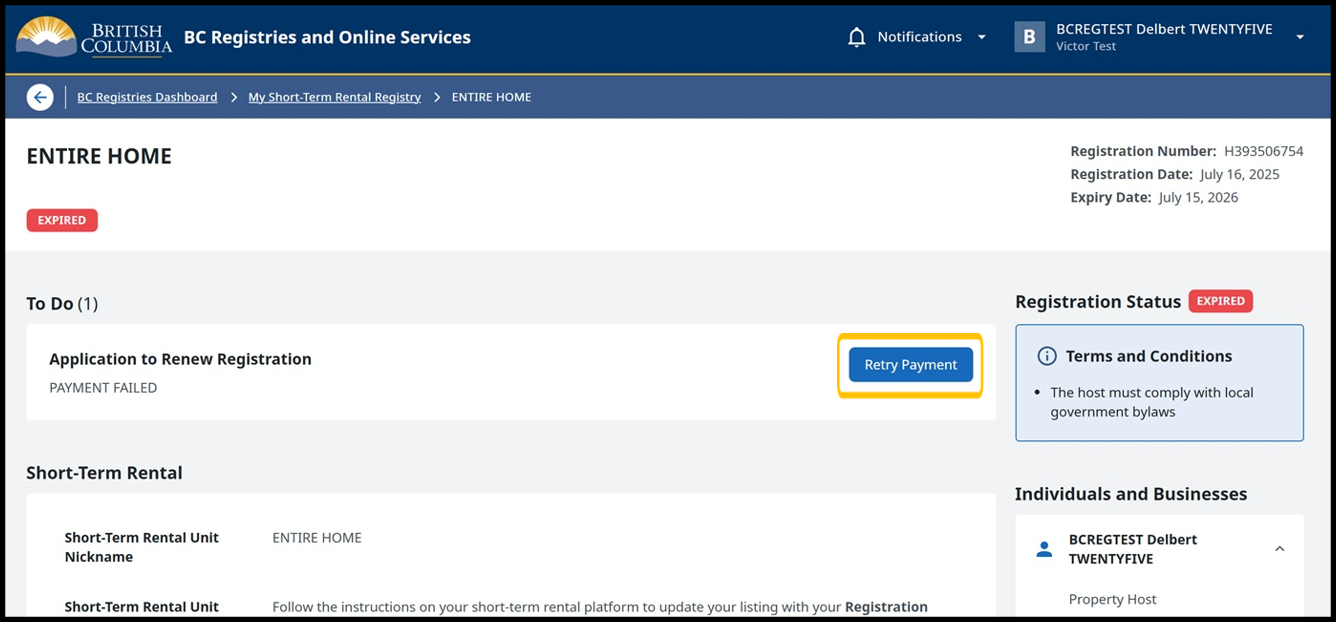
If your payment failed, you have the option to retry or return to your registration. To try your payment again later, return to your registration using the steps under "Find the registration you need to renew"
-
From the registration detail page, click "Retry Payment"
Change your payment method
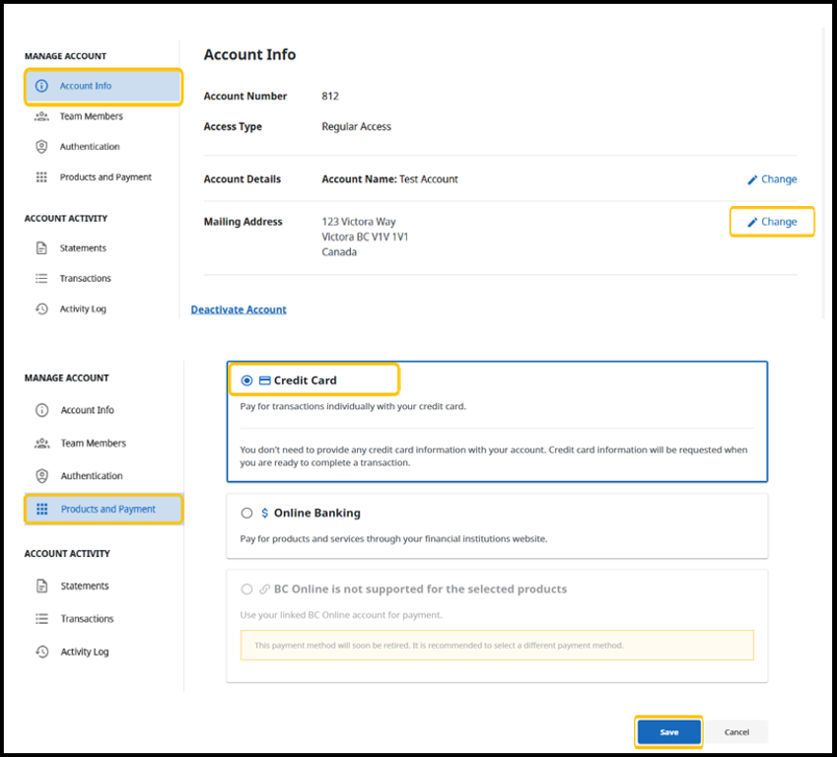
If you want to change the default payment method on your account, follow the below steps:
- Open your account settings
- Click on your BC Registries account name (top right)
- Right-click Account Info
- Confirm your mailing address is present:
- Beside the Mailing Address, click Change
- Enter your mailing address if it is not there
- Click Save
- Update your payment method
- In the left-hand menu, click "Products and Payment"
- Scroll to the bottom of the "Products and Payment" page
- Under "Current Payment Method" click "Edit"
- Choose your preferred payment method
- Click Save
- Complete or retry payment
- Go back to the Short-Term Rental Registry Dashboard
- Attempt payment again
Note: If you need assistance with your payment or account settings contact BC Online Help
Next steps when your renewal is complete
Registration status update
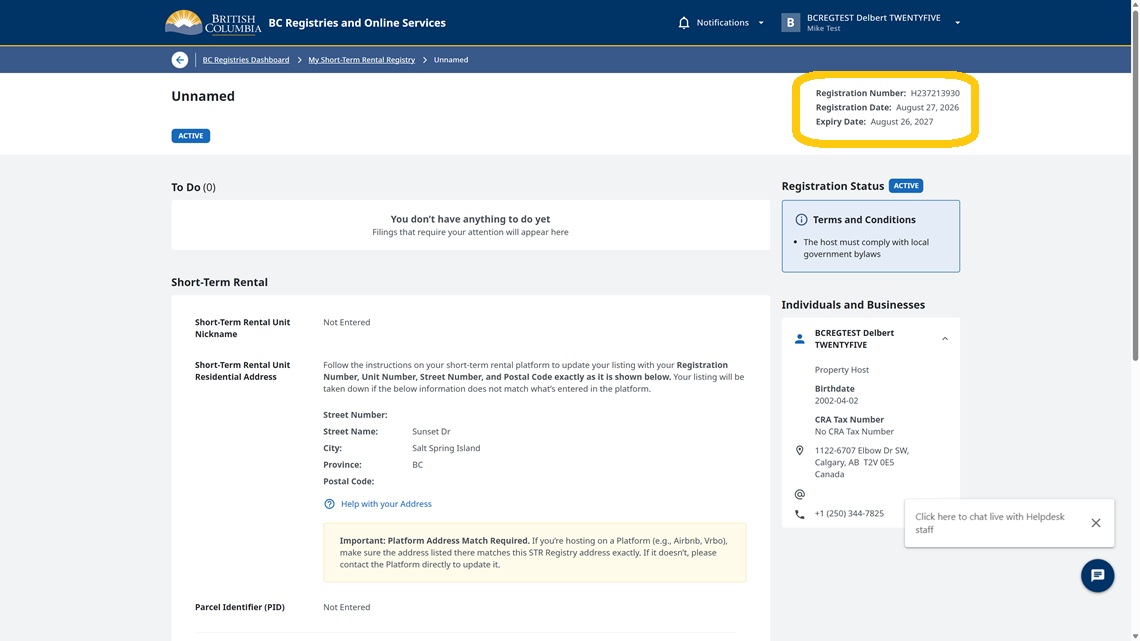
Once the online payment and renewal application have been processed, the registration will be Active. Your dashboard will display the new expiry date.
Download your receipt
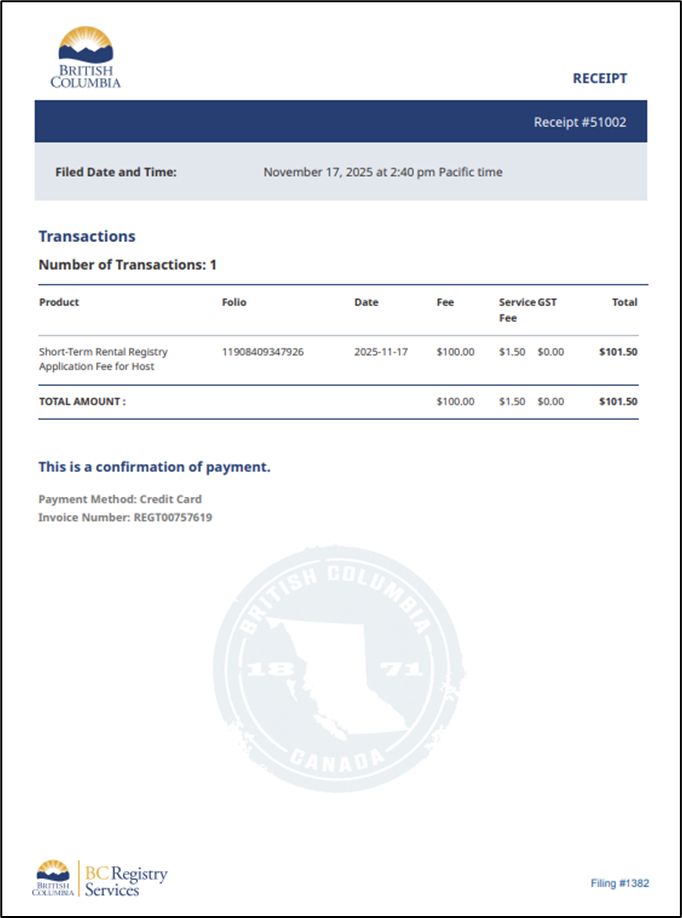
If you wish to keep a copy of your receipt you can access it from your registration:
-
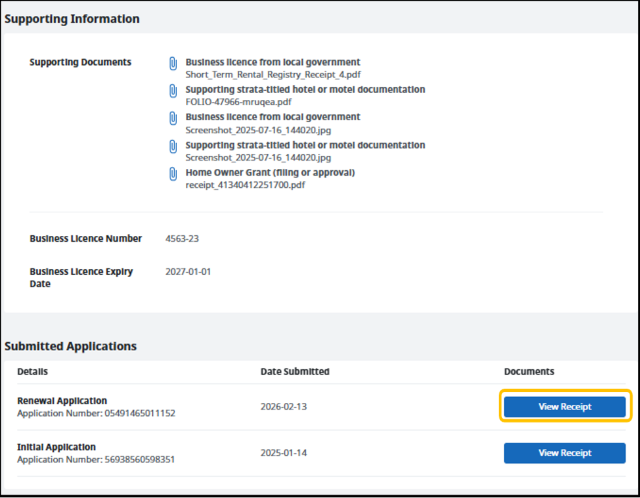
Within the detail view of your registration, scroll down to the section called "Submitted Applications"
-
Click View Receipt to download a PDF copy of your receipt
Note your new expiry date
-
The registration renewal will take effect from the date of registration expiration (not the date that the renewal was submitted)
-
If you renew after the expiry date, the new expiry date will be the date when the payment was marked complete
-
Mark your new expiry date down on your calendar to ensure you renew in time next year
Review your listings on booking platforms
-
Review your listings on booking platforms to ensure your registration number and short-term rental property address match what it says on your registration
-
If you created a new registration, you must update all listings with the new registration number
Contact information
If you have any questions or need assistance with the renewal process or accessing your dashboard, please contact Service B.C. at 1-833-828-2240 or email STRregistry@sbc.gov.bc.ca.