
How to register a new site in PRIME
 Last updated on April 1, 2026
This webpage explains how to register a new private community health practice site in PRIME for an existing organization, using a different PharmaNet software vendor. When you register using a different software vendor, do not enter your old site registration ID; a new PharmaNet site ID will be provided to your new vendor.
Contact information for vendors, and instructions to register a site, are below. Ensure you read what you need to register a community practice site first to avoid delays and possible interruption of PharmaNet access.
What you need to register a community practice site
1. Contract a PharmaNet software vendor
An organization must contract an approved PharmaNet software vendor before registering a site. Before creating a site registration in PRIME, you must confirm that your selected vendor is available, and enter into a contract with them.
- iClinic Inc.: 604-566-9862
- Medinet: 1-800-737-3771
- Plexia Electronic Medical Systems Inc.: 604-269-3733
- CareConnect: careconnect@phsa.ca (review the information at Community-Based Access before contacting CareConnect)
2. Identify the site's signing authority
Once a vendor is contracted, the site should identify the person in the organization whose role it is to manage the site’s registration in PRIME. This person may be, for example, a business owner or a person who is responsible for multiple clinics owned by the organization. This person is referred to as the signing authority and they:
- Can legally bind the organization to the terms of site registration and the Organization Agreement for PharmaNet Use OR can vouch for accuracy of the site registration and ensure the Agreement is properly executed by the organization as part of site registration
- Does not need to be a PharmaNet user, member of a regulated health profession, or providing direct patient care at the site
To register the site, the signing authority will need:
- The BC Services Card app (PRIME collects only name, address and date of birth from the card—the minimum to verify identity)
- The site’s current municipal business licence
- The organization name exactly as it appears on the BC Corporate Registry. You can use OrgBook BC to check the BC Corporate Registry
- The organization’s mailing address
- The site’s normal operating hours
- The name of the contracted PharmaNet software provider
- The name, address, phone number and email of the site’s PharmaNet Administrator, Privacy Officer, and Technical Support Contact of the site. (These may all be the same as the Signing Authority. See Site roles below for role descriptions.)
- Name, email address, college name, and current license type of physicians or nurse practitioners who wish to access PharmaNet remotely, and the 5-digit college number that identifies the individual in PharmaNet (CPSID for physicians, PharmaNet ID for nurse practitioners)
After providing the required information, the signing authority will either accept the Organization Agreement for PharmaNet Access or download the Agreement, have it executed offline, and upload the signed copy to PRIME. The agreement must be accepted, or the executed copy uploaded, before the site registration can be submitted.
View the step-by-step guide to registering a new site in PRIME.
PRIME should be used on a laptop or desktop computer, not a mobile device.
For explanation of roles (signing authority, privacy officer, etc.), refer to Site roles.
1. Private community health practice site registration for PharmaNet access: landing page
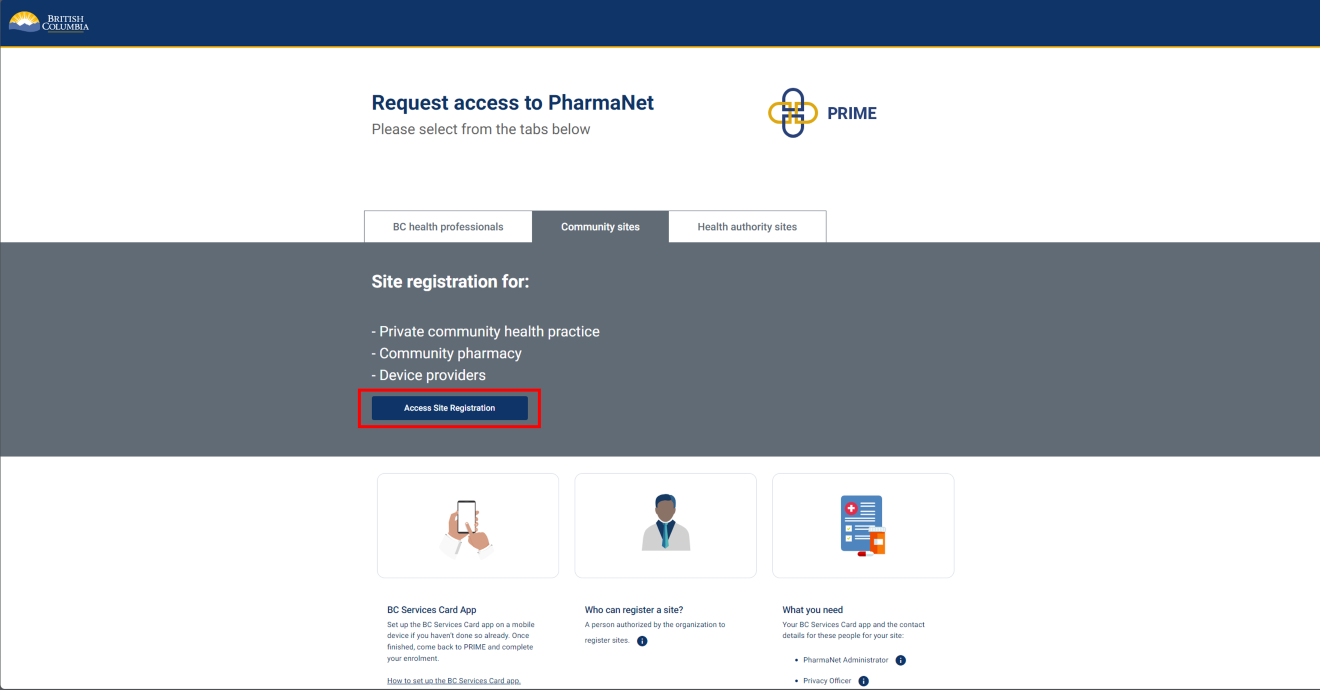
Select Site Registration to start.
The person registering the site ("signing authority" in PRIME) should have:
- BC Services Card app set up on a mobile device.
2. Collection of Personal Information Notice
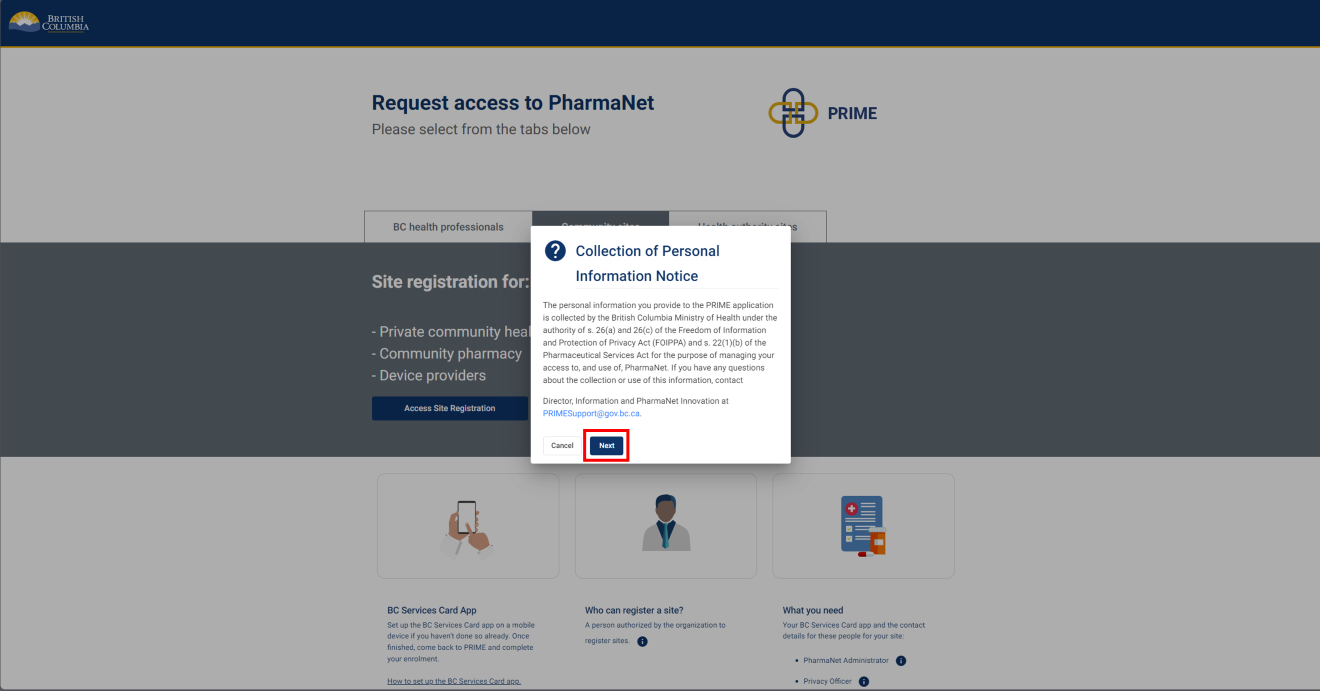
Click Next to acknowledge the Collection of Personal Information Notice.
3. Log in with the BC Services Card app
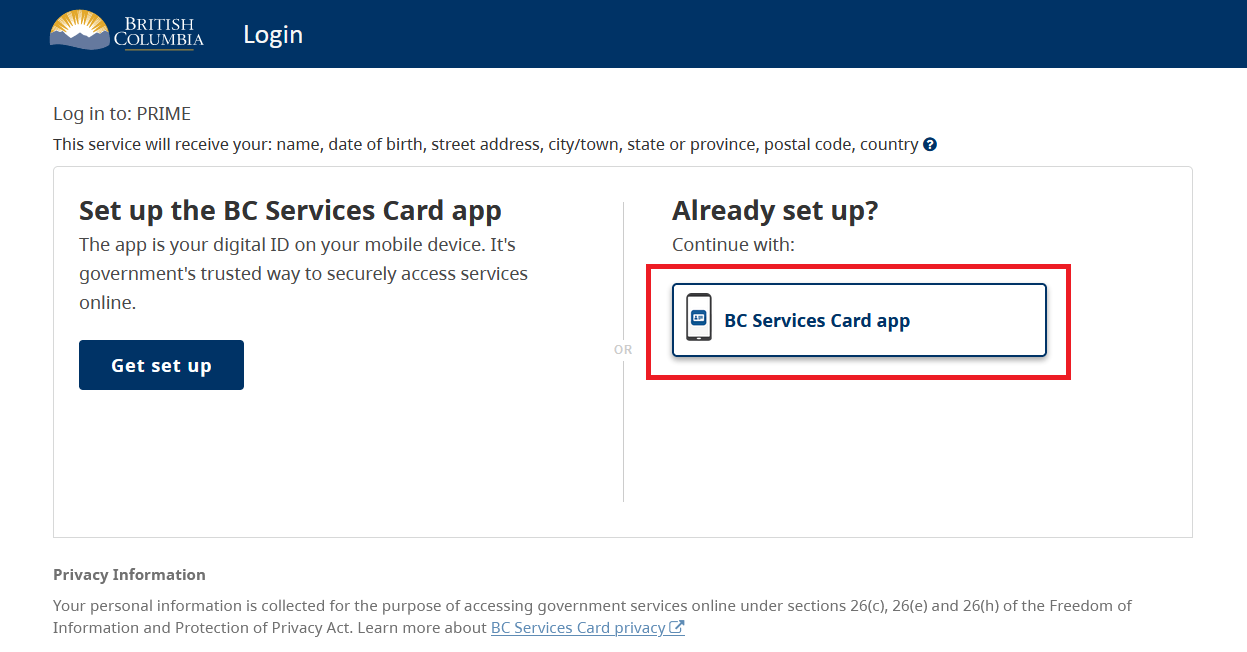
Select BC Services Card app.
For more information about logging in with a BC Services Card, visit: BC Services Card.
4. BC Services Card login: enter pairing code in mobile device
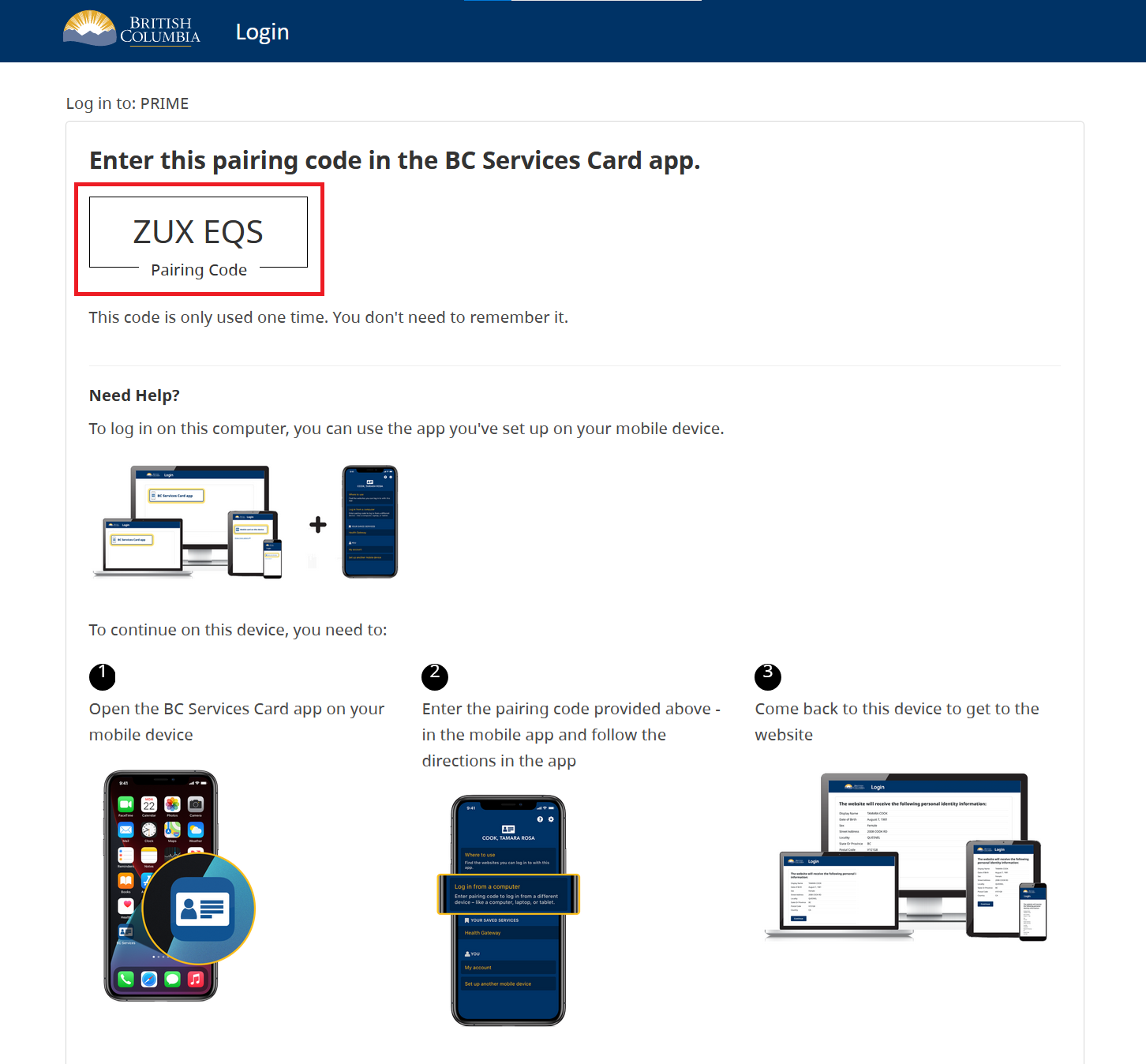
- Open the BC Services Card app on a mobile device
- Enter the code displayed on the BC Services Card login screen in the pairing code field.
- Select Continue.
PRIME will proceed to the next screen.
5. BC Services Card login: choose to send notification to mobile device instead
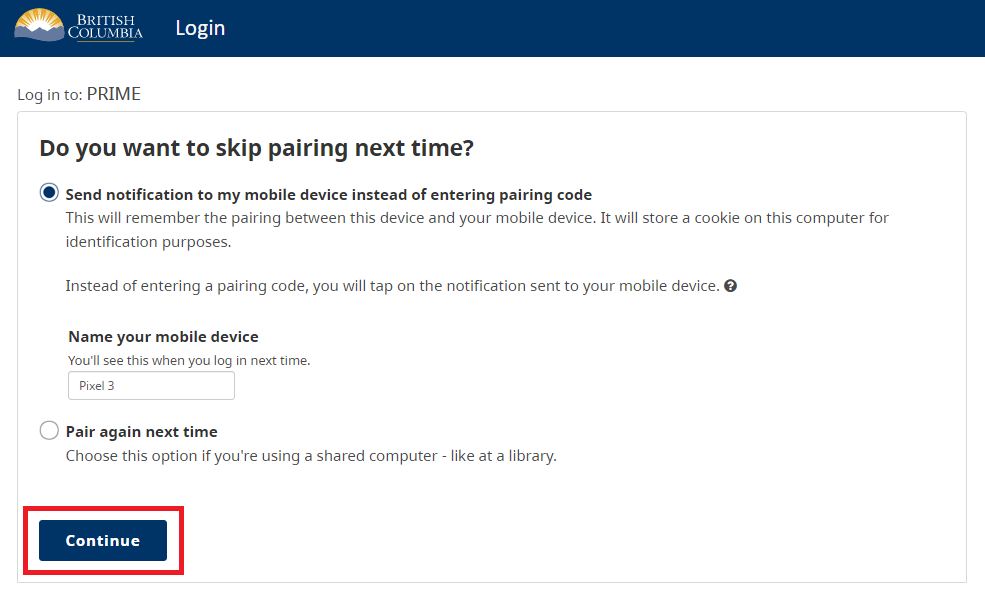
Choose whether to have a notification sent to a mobile device instead of entering a pairing code so you can skip the pairing step in subsequent logins.
Click Continue.
6. BC Services Card information shared with PRIME
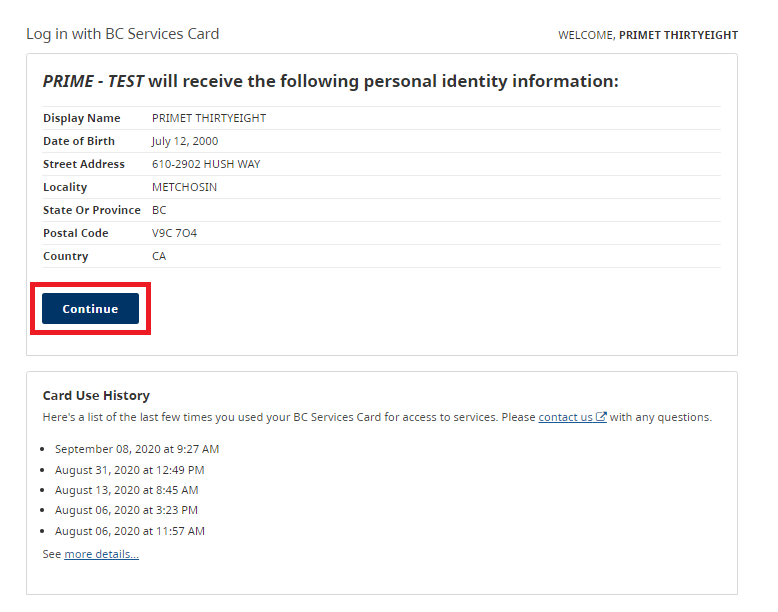
This screen displays the information that is shared between the Signing Authority's BC Services Card and PRIME.
Click Continue.
7. Add new site
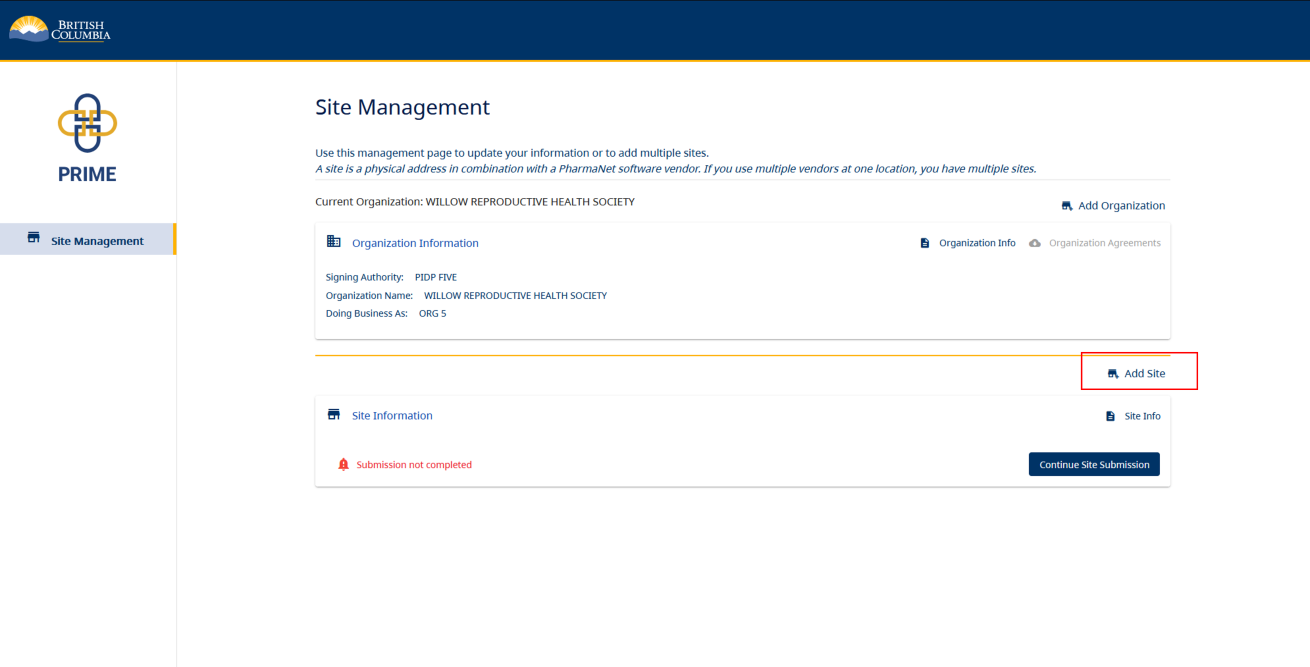
On the Site Management landing page, click Add Site.
8. Care setting
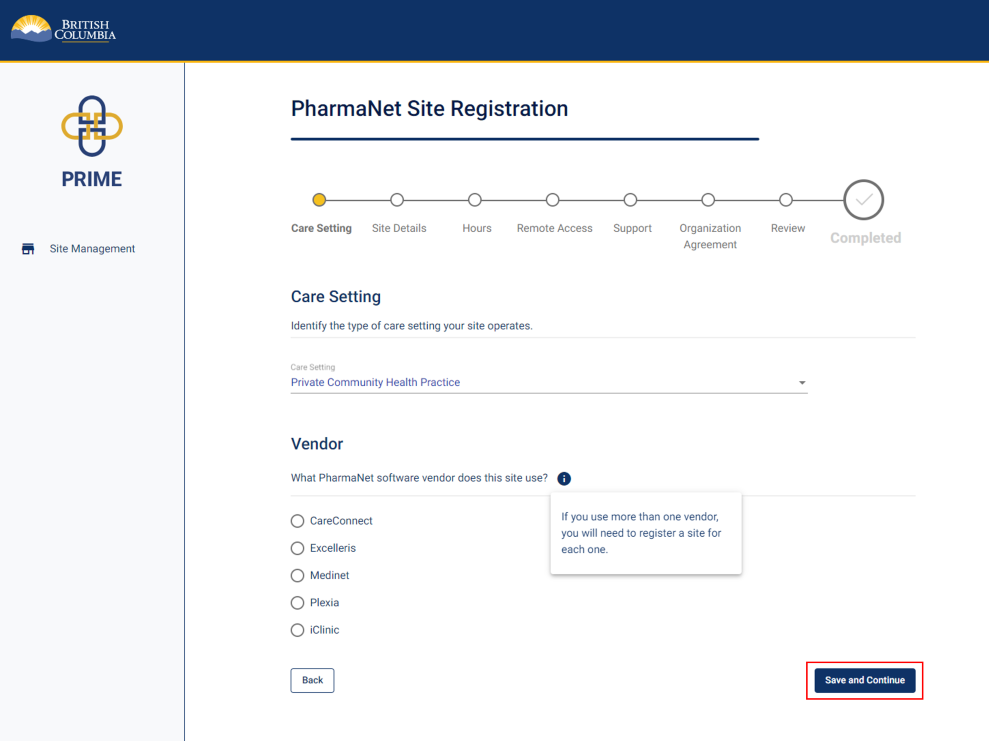
Select the type of care setting and the software vendor the site uses.
Visit Community health practice access to PharmaNet for software vendor contact info.
Click Save and Continue.
9. Site details (1 of 2)
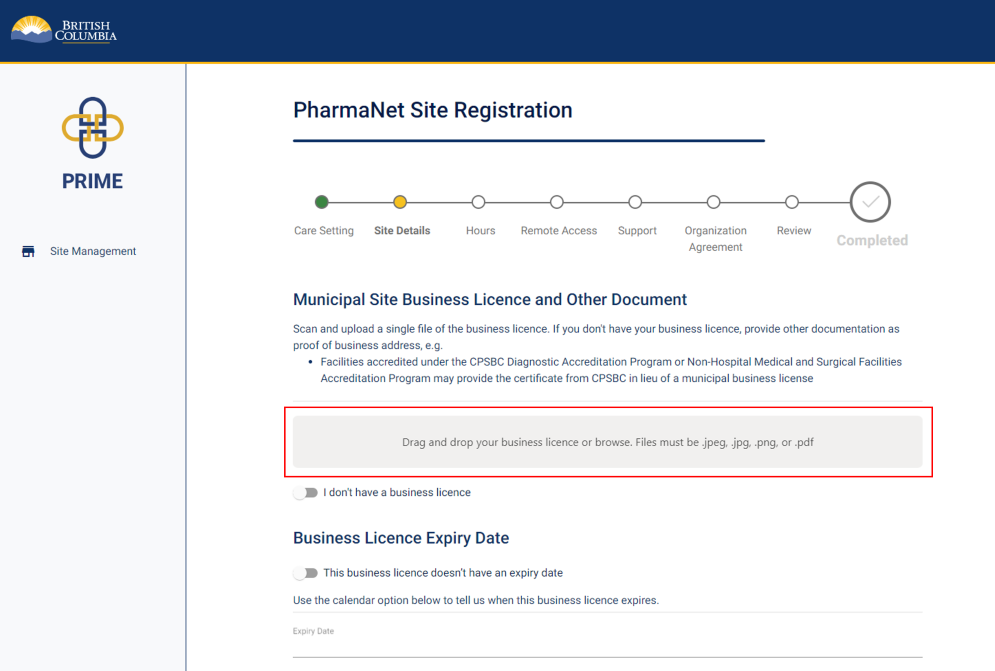
Scan and upload a copy of the site's business licence.
Provide the business licence's expiry date.
If you do not have a business license yet, click the I don't have a business licence toggle, and enter a reason in the text box that appears below.
If you are located in a municipality or region that does not issue business licenses, please upload a screenshot of the municipality website indicating that a business license is not issued.
10. Site details (2 of 2)
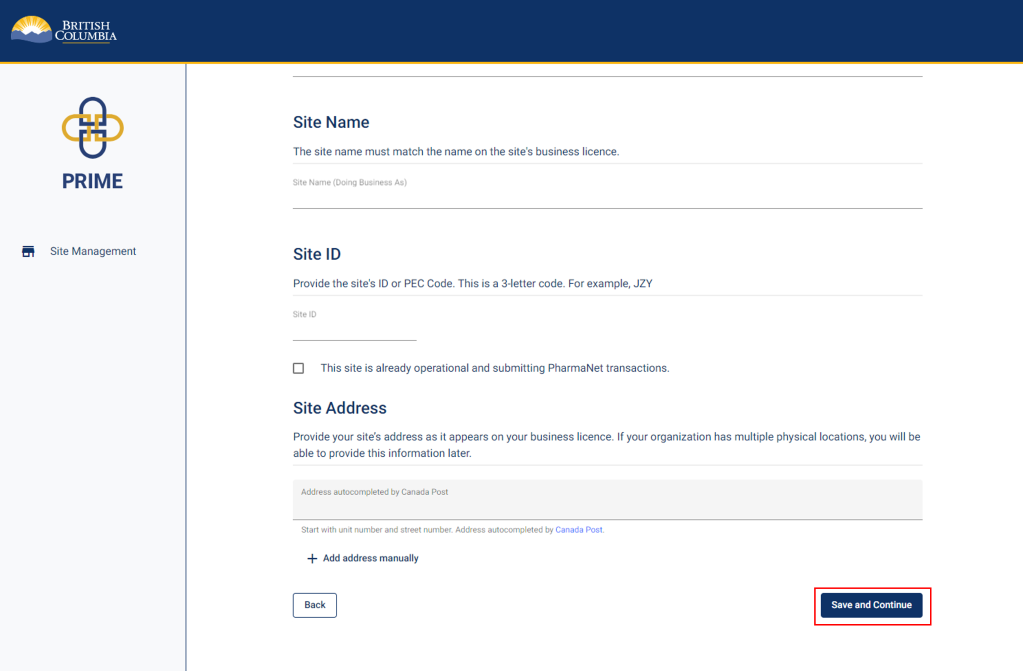
Enter the site name. Please enter a site name even if it is the same as the name of the organization.
If the organization does business under a different name than is on the licence, you must provide a "doing business as" name.
Provide the site ID or PEC code if you know it. If you are registering a new site using a different software vendor, do not enter your old site registration ID; a new PharmaNet site ID will be provided to your new vendor.
Enter the site's address as it appears on the business licence. The rest of the address is auto-populated.
Click Save and Continue.
11. Hours of operation
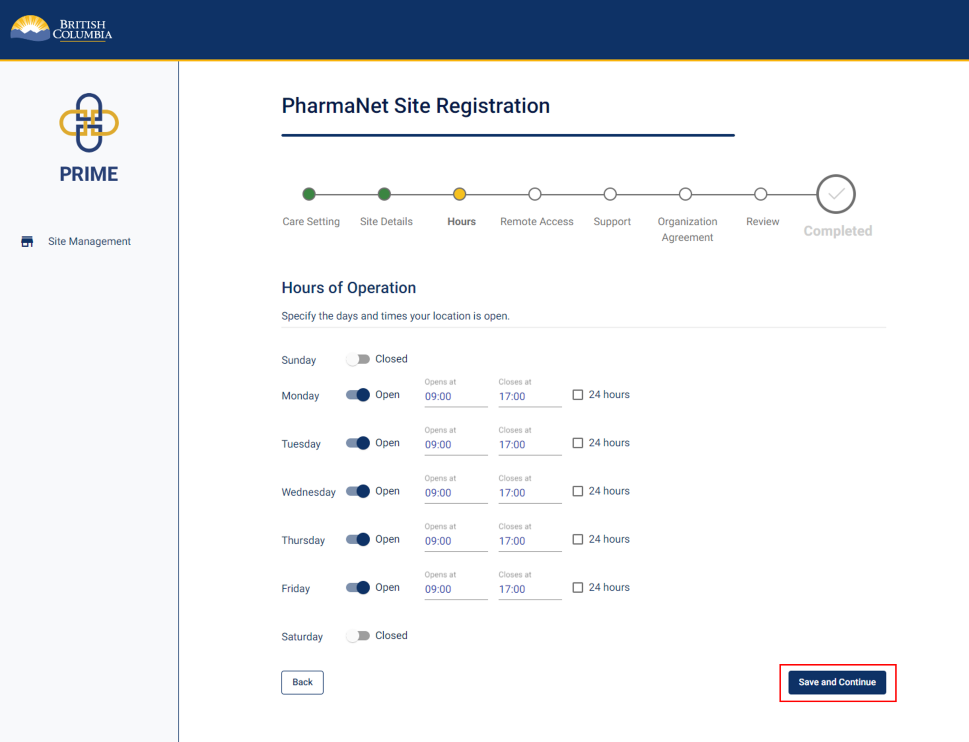
Specify the days and times the site is open for business.
Don’t select 24 hours unless your site is open to patients 24 hours/day.
Click Save and Continue.
12. Practitioners requiring remote PharmaNet access
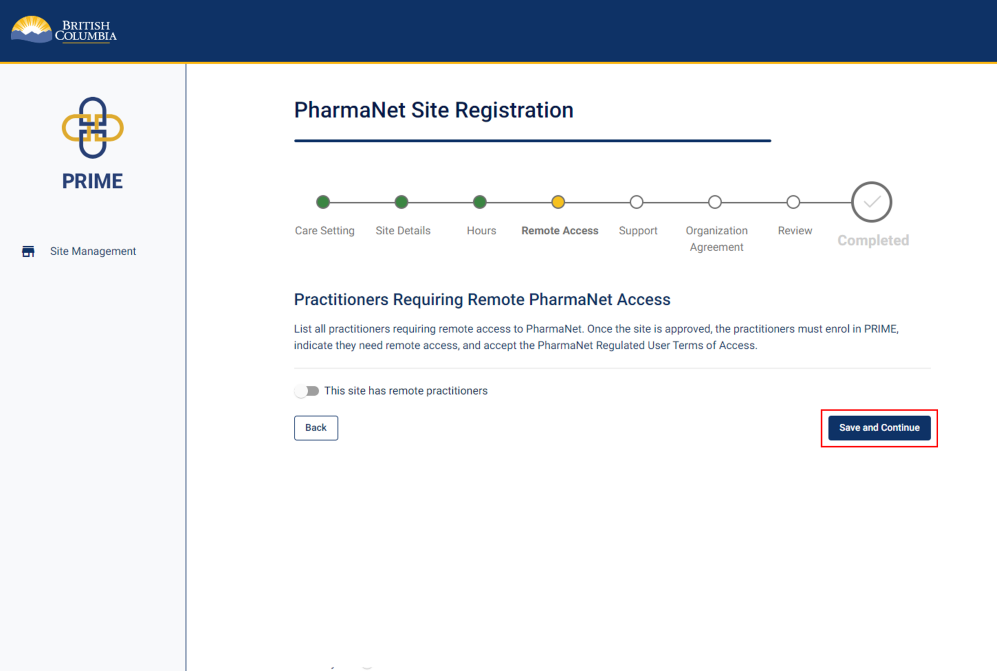
If applicable, list all practitioners requiring remote access to PharmaNet for the site.
Note: Remote access is only available to physicians and nurse practitioners.
If not applicable, click Save and Continue.
13. PharmaNet administrator information
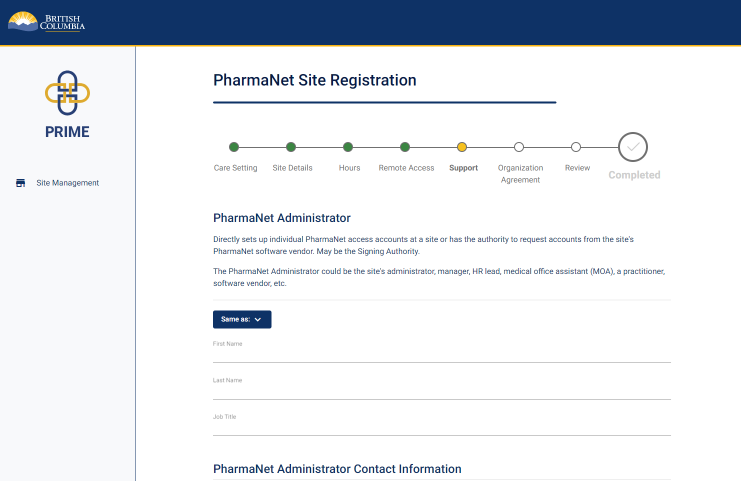
The next three steps will require you to enter information for three different functions. One person can perform all three of these functions.
If all three roles are performed by one person at your site, click the Same as button to auto-populate the information for each subsequent role.
If each role is performed by a different person, enter their information as requested on each screen.
Enter the PharmaNet administrator's name, job title, and contact information.
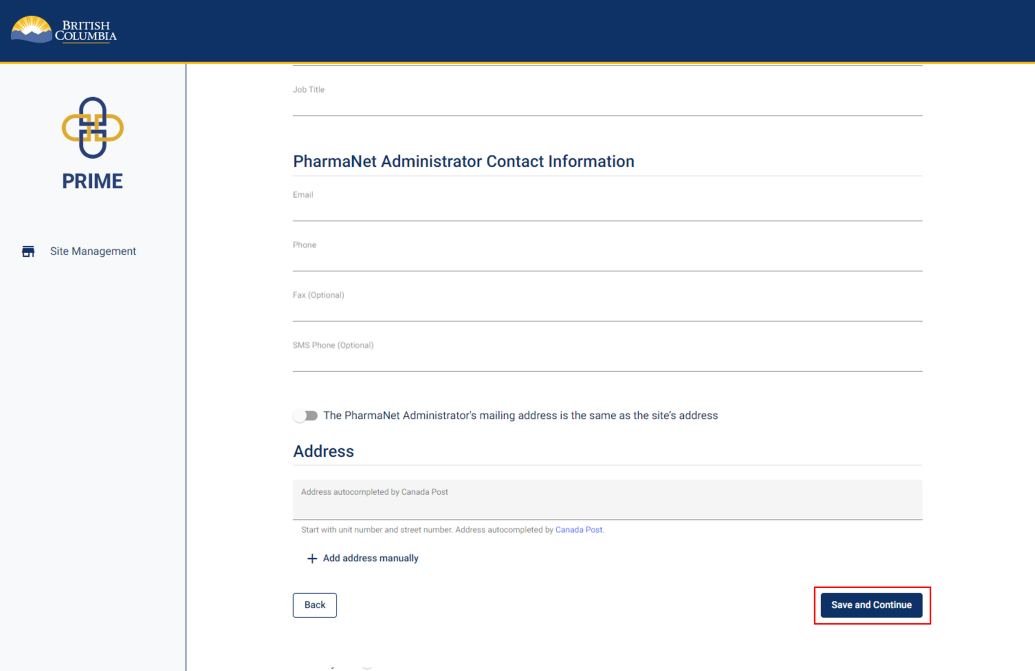
Click Save and Continue.
14. Privacy officer information
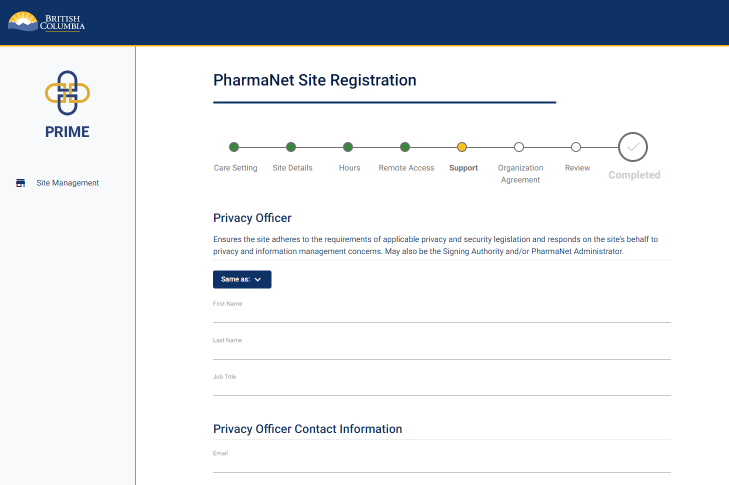
Enter the privacy officer's name, job title, and contact information.
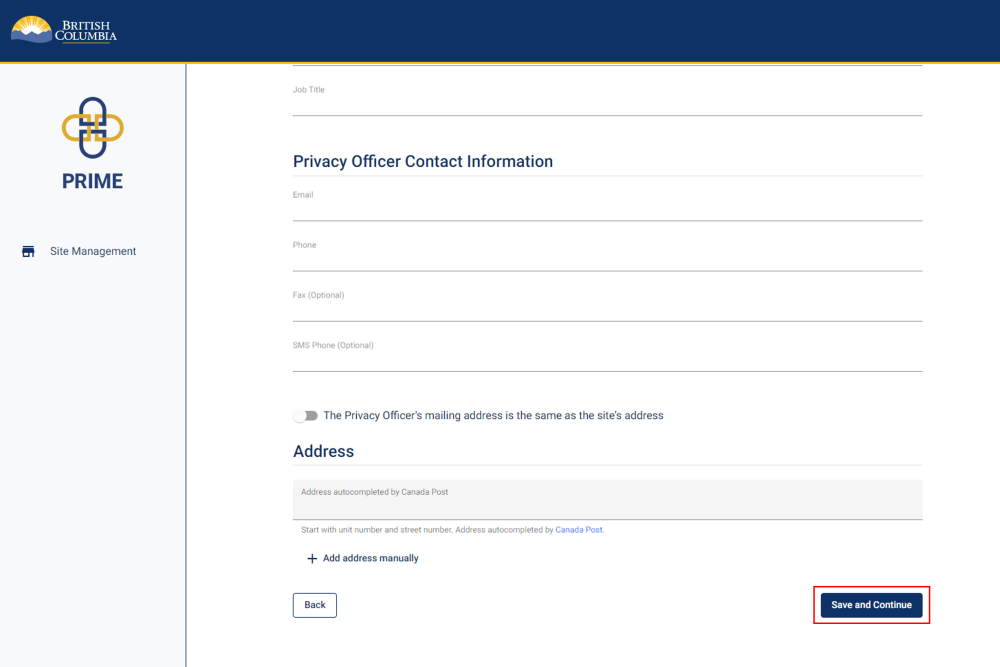
Click Save and Continue.
15. Technical support contact information
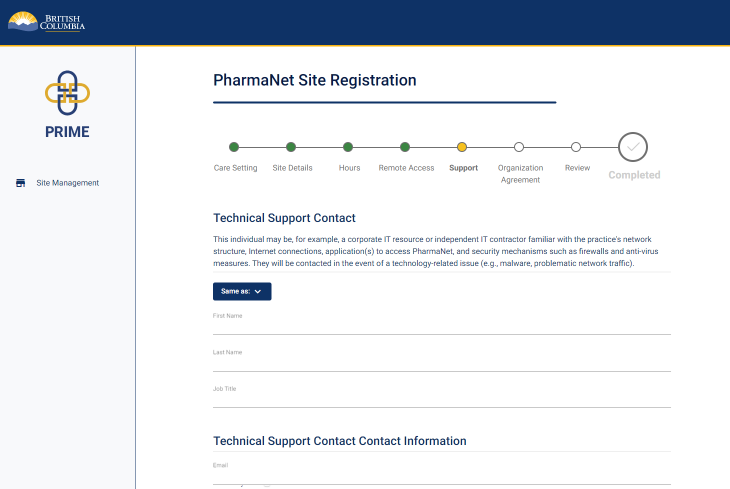
Enter the technical support's name, job title, and contact information.
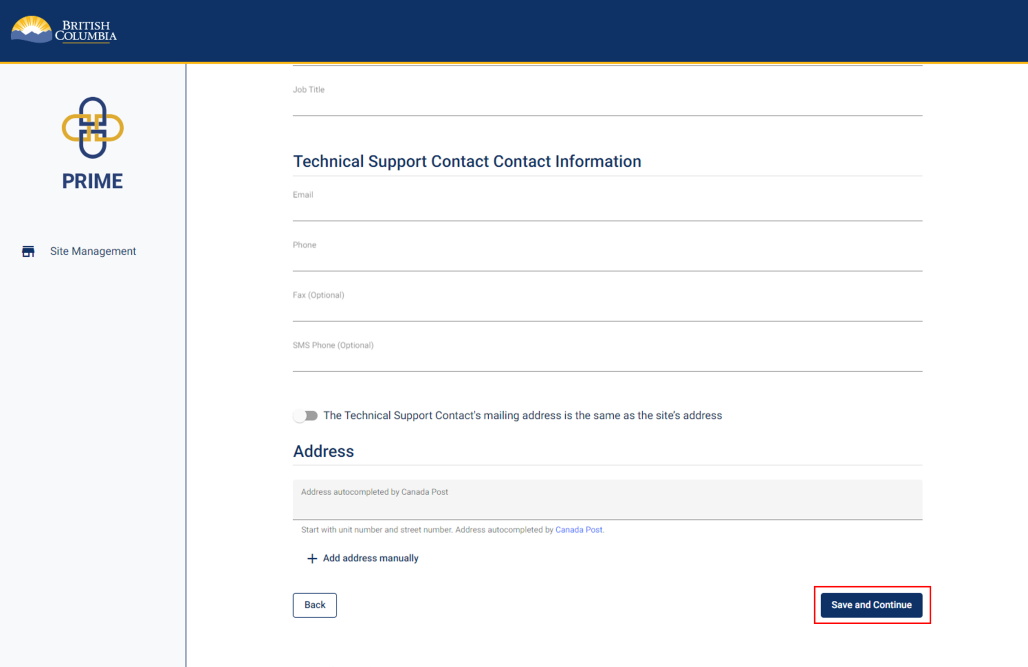
Click Save and Continue.
16. Review and accept Organization Agreement for PharmaNet Use (1 of 3)
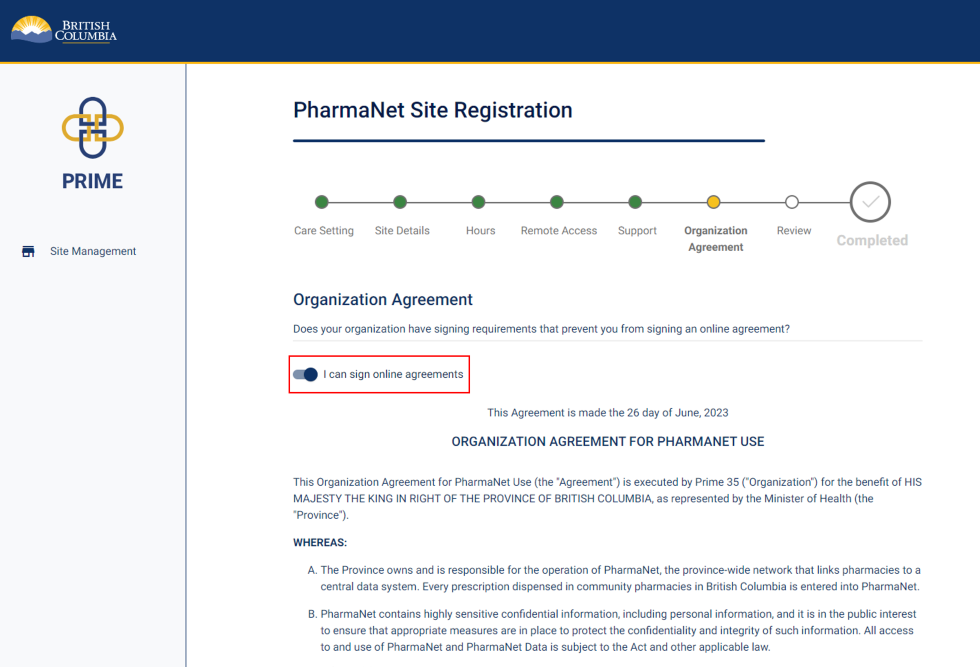
If you are legally authorized to accept on behalf of your organization, and your organization allows signing online agreements, click I can accept online agreements.
If you cannot accept online agreements, proceed to Step 18.
Scroll down to read the Organization Agreement for PharmaNet Use.
17. Review and accept Organization Agreement for PharmaNet Use (2 of 3)
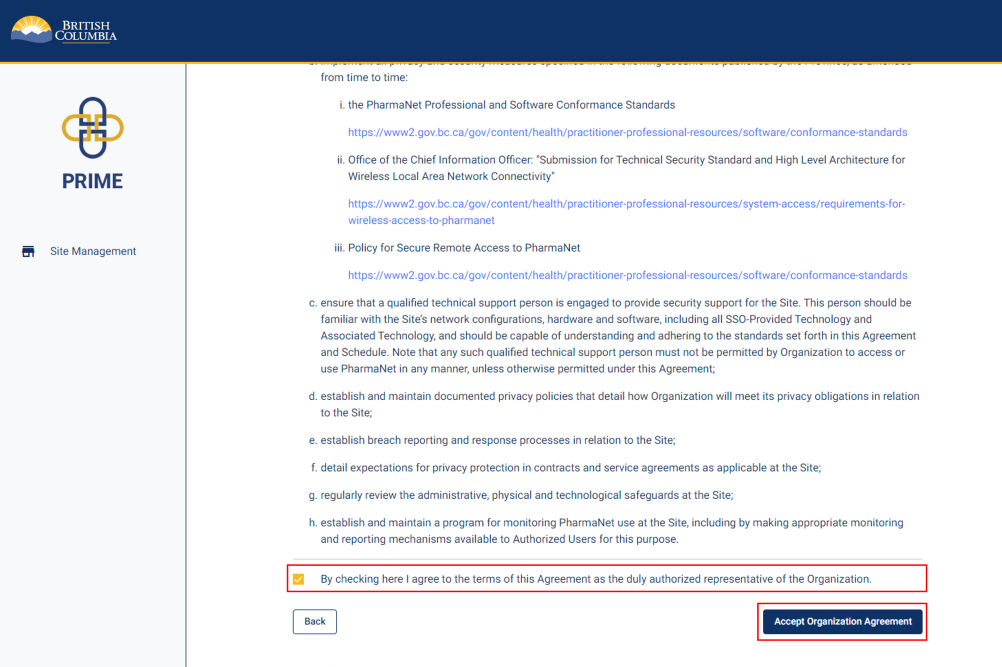
Click the checkbox to agree to the Organization Agreement for PharmaNet Use as the organization's authorized representative
Click Accept Organization Agreement.
18. Review and accept Organization Agreement for PharmaNet Use (3 of 3)
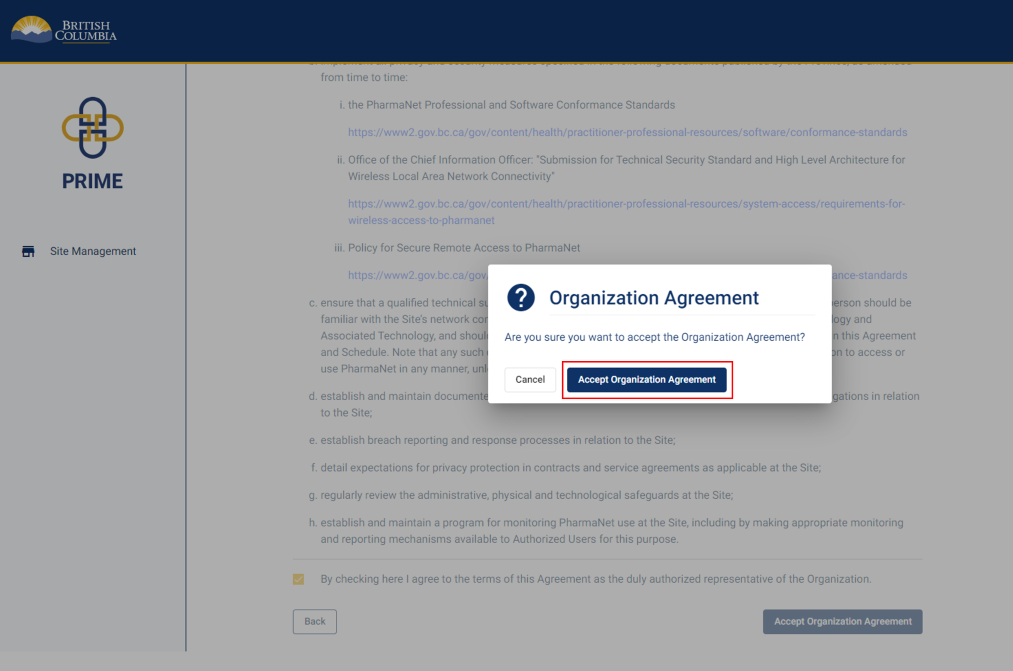
A pop-up window appears to confirm acceptance of the Organization Agreement.
Click Accept Organization Agreement.
19. Organization Agreement for PharmaNet Use (if you are not able to sign online agreements) (1 of 2)
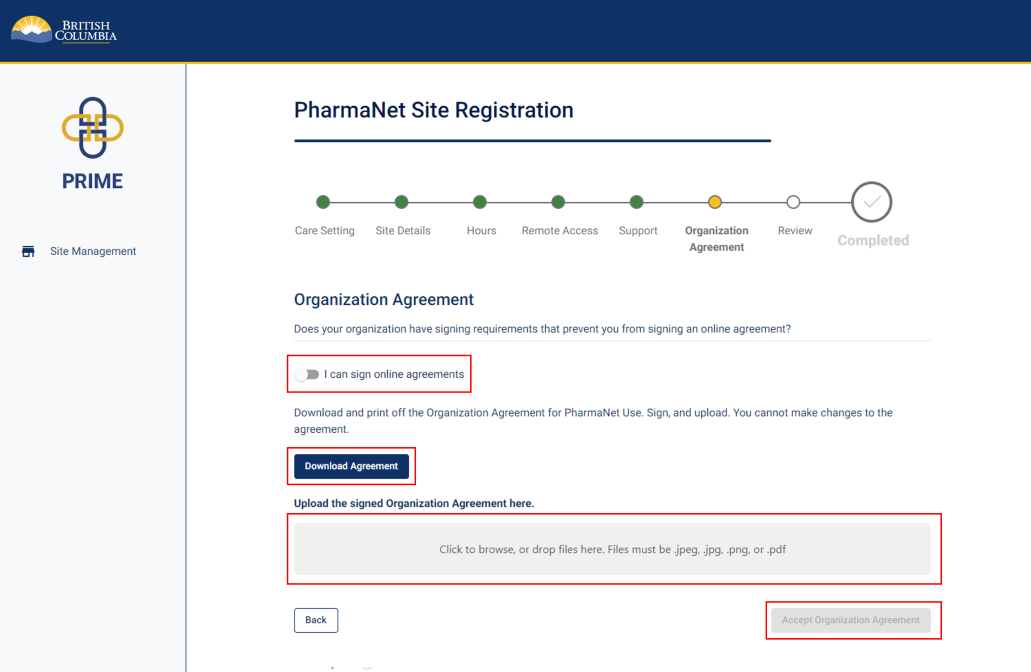
If the organization has signing requirements that prevent you from signing an online agreement, download a copy of the organization agreement by clicking the Download Agreement button.
Print a copy of the agreement, sign it by hand, and upload it back to PRIME.
Click Accept Organization Agreement.
20. Organization Agreement for PharmaNet Use (if you are not able to sign online agreements) (2 of 2)
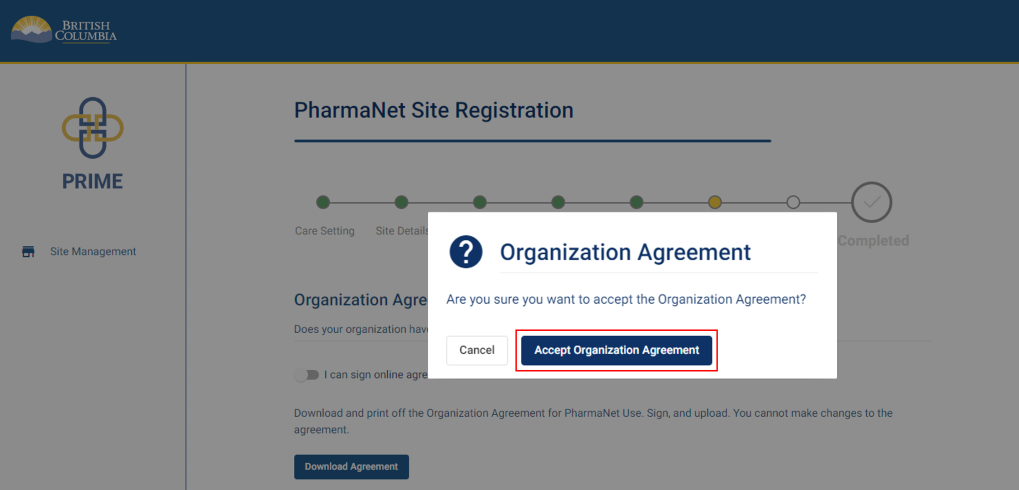
A pop-up window appears to confirm acceptance of the Organization Agreement.
Click Accept Organization Agreement.
21. Site registration review (1 of 3)
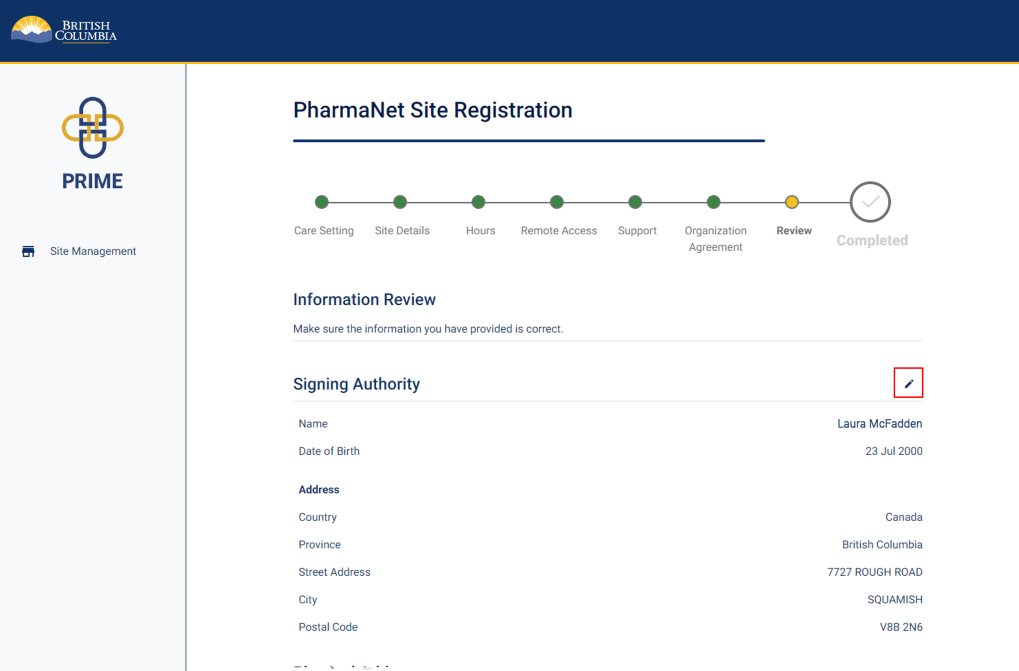
Review the information provided in the registration.
Click the pencil icon to edit any section.
22. Site registration review (2 of 3)
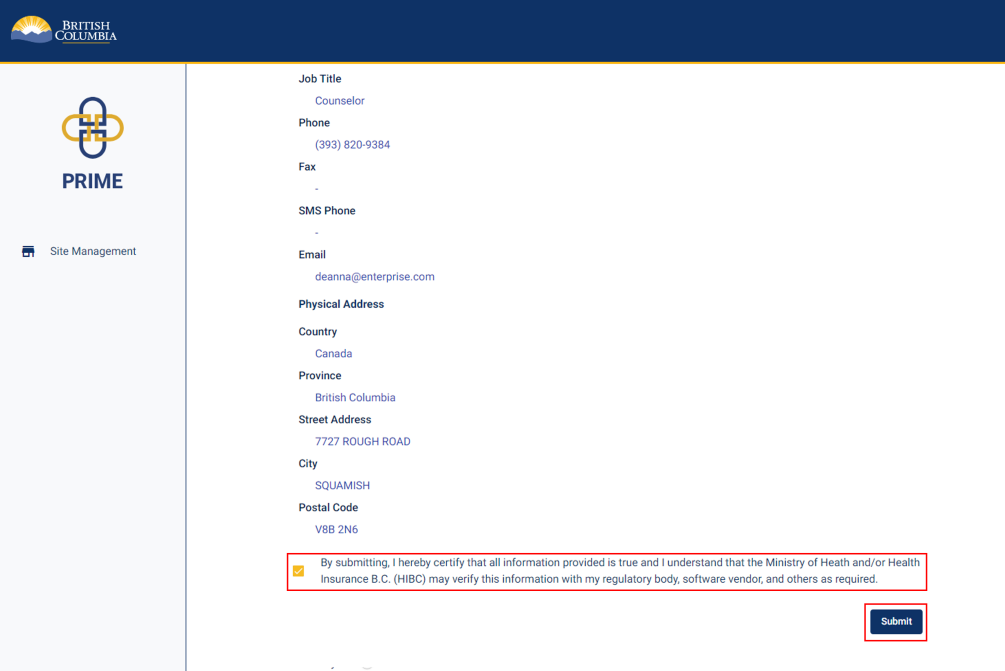
Check the box to certify that all information provided is true and complete.
Click Submit.
23. Site registration review (3 of 3)
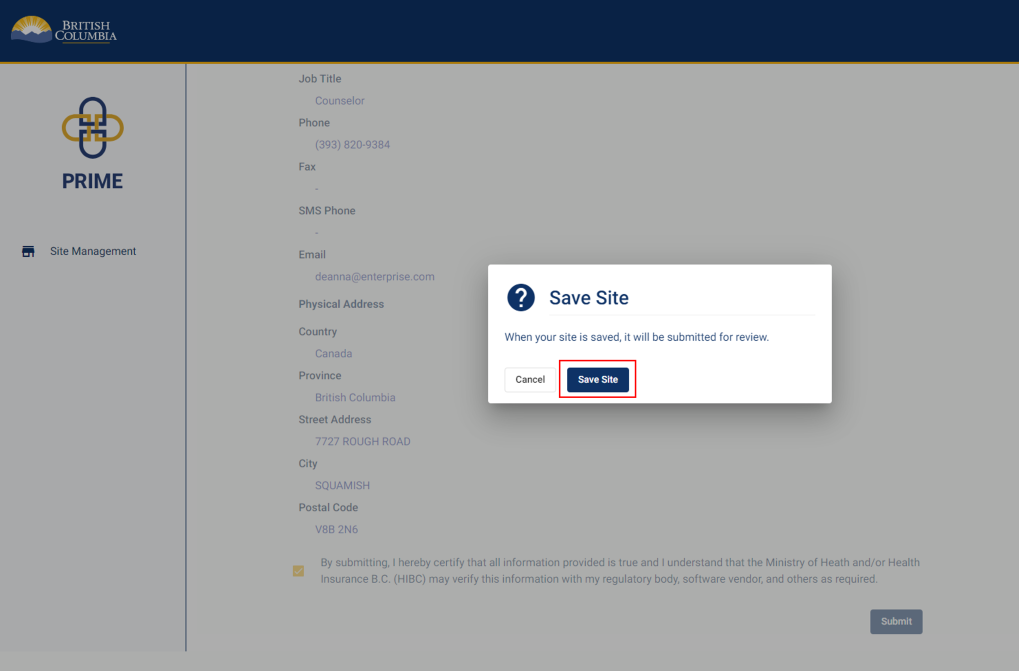
A pop-up window appears to confirm the registration submission.
Click Save Site.
24. Site registration submitted
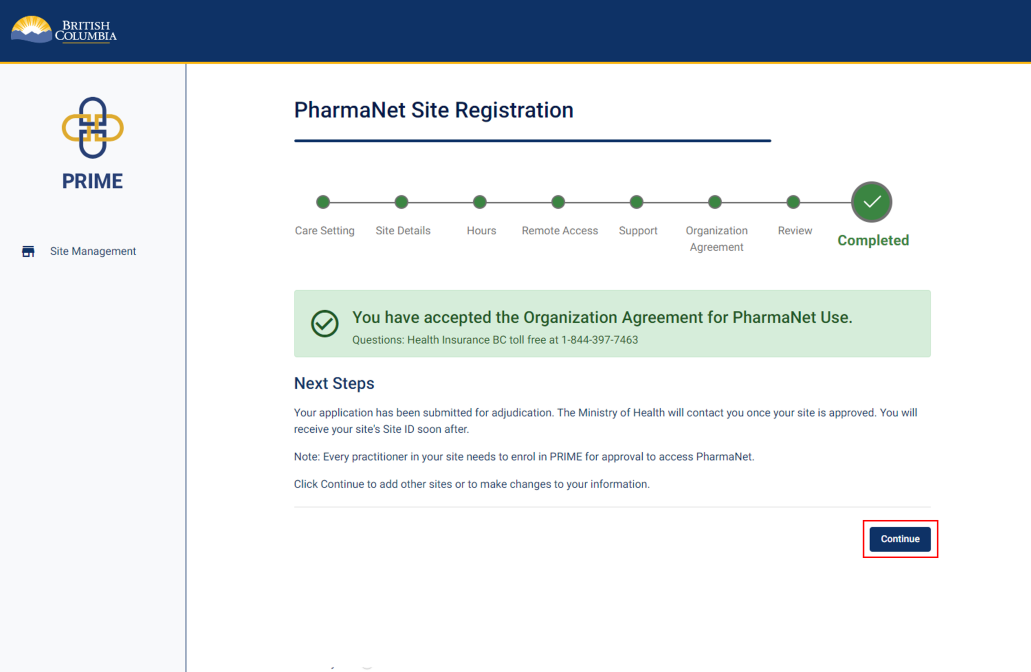
You will see confirmation of your acceptance of the Organization Agreement for PharmaNet Use.
This means the submission is under review by the Ministry, and the Signing Authority will be contacted once the application has been reviewed.
Click Continue.
25. Site management—waiting for approval
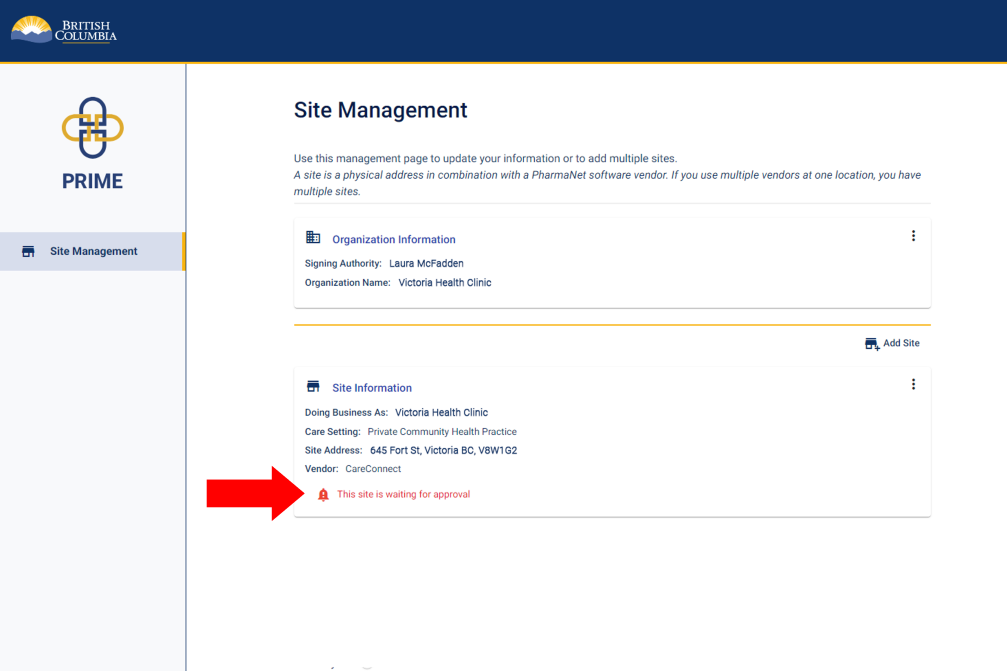
In the Site Management screen, you will see the site that has been added and a note that the site is waiting for approval.
You may now log out of PRIME.
26. PharmaNet software vendor is notified
The PharmaNet software vendor is notified when the site’s PRIME registration is approved and the clinic’s connection to PharmaNet is ready to be set up and activated. Once activated, all PharmaNet users at the site must enrol in PRIME and send their PRIME approval email to the site’s PharmaNet administrator (who is identified in the site registration). Please ensure that your PharmaNet users have the correct email address for the PharmaNet administrator to avoid delays. When the PharmaNet administrator receives a PRIME approval email, they should either:
- Add the requested clinic details and forward the email to the site’s PharmaNet vendor, who then contacts the enrollee when their access credentials are set up; or
- Use the details shown under the link embedded in the approval email to set up the user’s access in the site’s PharmaNet application (if this is arranged with the vendor)
Get support
Questions about PRIME should be directed to 1-844-397-7463 or to PRIMESupport@gov.bc.ca.
Site Roles
Signing authority
- Organization representative authorized to submit the site request on the organization’s behalf
- Designated as responsible for PharmaNet activities at the location being set up for PharmaNet access (site)
- Normally signs the Organization Agreement for PharmaNet Use. If not, ensures the agreement is appropriately signed and incorporated into the organization information in PRIME
- Does not need to be a PharmaNet user, member of a regulated health profession, or providing direct patient care at the site
PharmaNet administrator
- Directly sets up individual PharmaNet access accounts at a site or has the authority to request accounts from the site's PharmaNet software vendor
- This person may be, for example, the site’s office administrator, HR lead, medical office assistant (MOA), or a practitioner
- In some cases, this function may be filled by the PharmaNet software vendor
- May be the same as the Signing Authority
Privacy officer
- Responsible for the site’s adherence to applicable privacy and security legislation
- Will be asked to help with investigations in the event of a security breach or concerns with how PharmaNet data is accessed or used at the site
- May be the same as the Signing Authority and/or PharmaNet Administrator
Technical support
- May be contacted in the event of technology-related issues (e.g., malware)
- Should be familiar with the PharmaNet software application, general security mechanisms such as firewalls and anti-virus measures, and the details of the network structure or Internet connections in use at the site
- Should be able to quickly provide a network diagram of the site, including peripherals, wireless access points, connected devices, and all applications using Internet router(s)
- Not likely to be the site’s PharmaNet software vendor, unless that vendor is familiar with the full range of hardware and software in use at the site
- May be the same as the Signing Authority, the PharmaNet Administrator, or the Privacy Officer (however, they must possess the technical skill and understanding to answer complex network- and application-related questions)


Related links