
Step 5 - Opportunity close
 Last updated on December 11, 2025
Step 5 - Closing RFx, Open Envelope Opportunities, Submitting on behalf, Unsealing, Viewing Submissions, Analyze
Instructions
Follow the instructions in the sections below.
Manual Close of Opportunity
Click to enlarge image
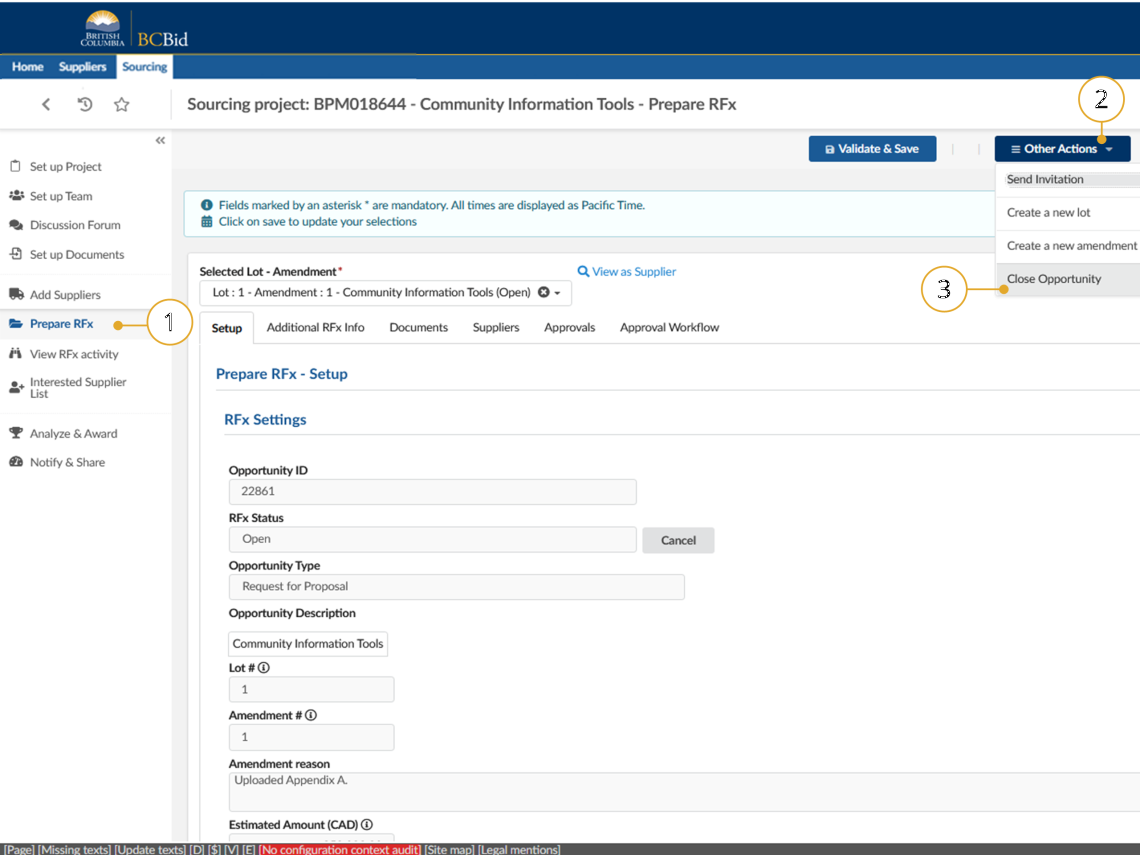
1. In the left-hand menu, click Prepare RFx.
2. Click the Other Actions dropdown button.
3. Click Close Opportunity.
This section is here for training to allow trainers to upload Submissions during practice.

Manual closure of opportunities is available and should be used in accordance with core policy and best practices. This function is not recommended for use.
Click to enlarge image
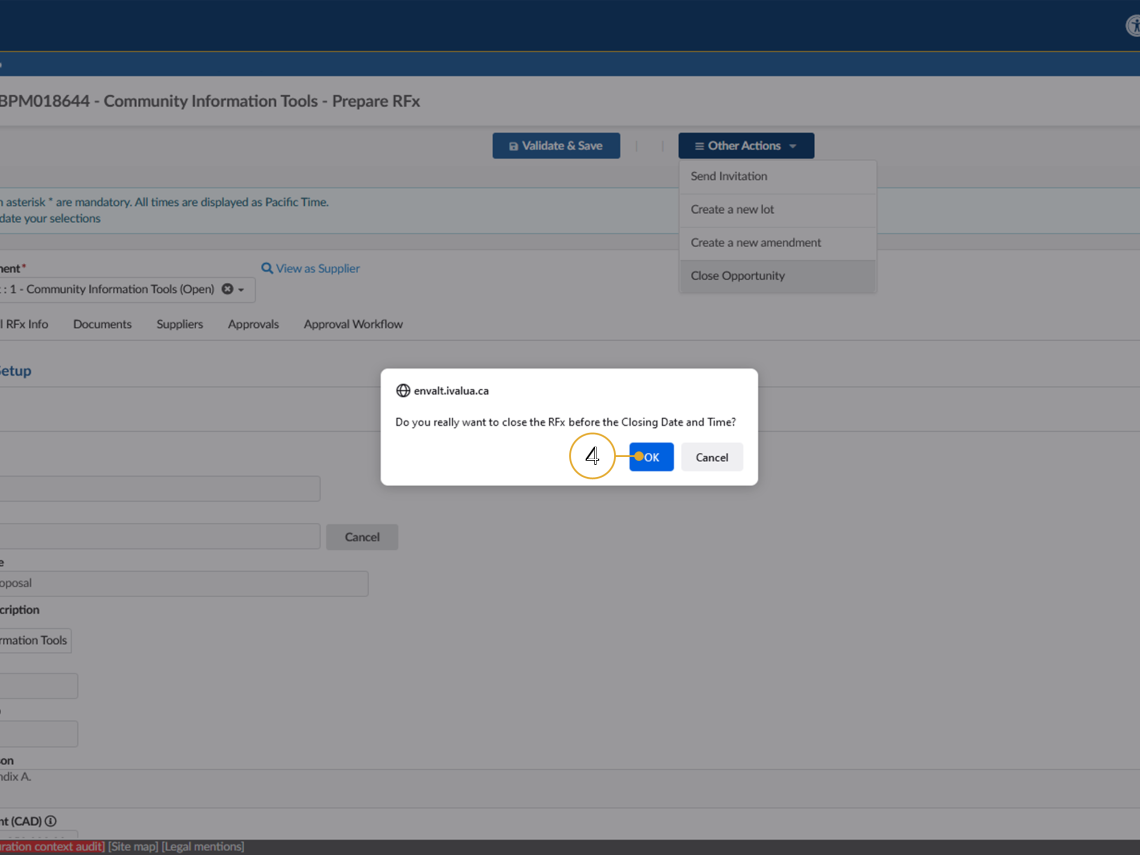
4. Click OK.
Open Envelope Opportunities
Open envelope opportunities (MUL, RCSA, CSA) include a function that ensures Buyers can upload offline submissions received seconds prior to the opportunity closing.
To upload an offline submission received before the closing date/time to an open envelope opportunity after the opportunity has closed, follow these steps:
- Using the left-hand menu, click Prepare Rfx.
- Click the Temporarily Seal Opportunity button.

Click to enlarge image
1. Next, the opportunity should now indicate that it’s temporarily sealed as indicated.

Click to enlarge image
Next, proceed to follow the steps listed under the next section entitled Upload Submissions.
Once you have completed the uploading all submissions in the Upload Submissions section, then Buyers can proceed with the following steps:
- Click View RFx activity.
- Click the Remove temporary seal button.

Click to enlarge image
Now, the Remove temporary seal button should disappear as shown below. Buyers should be able to view the offline submissions that have been uploaded by clicking the magnifying glass next to each supplier record. Please note the important advice on the bottom of this page regarding repeating this process.

Note: You can repeat this process multiple times as long as the status of the opportunity is Closed. Once the opportunity has been updated to the status of Completed the Temporarily Seal Opportunity function will be permanently unavailable for the opportunity. This step cannot be reversed.
Click to enlarge image
Submissions that are only to be viewed after Closing Date and Time, are uploaded after the Opportunity is closed.
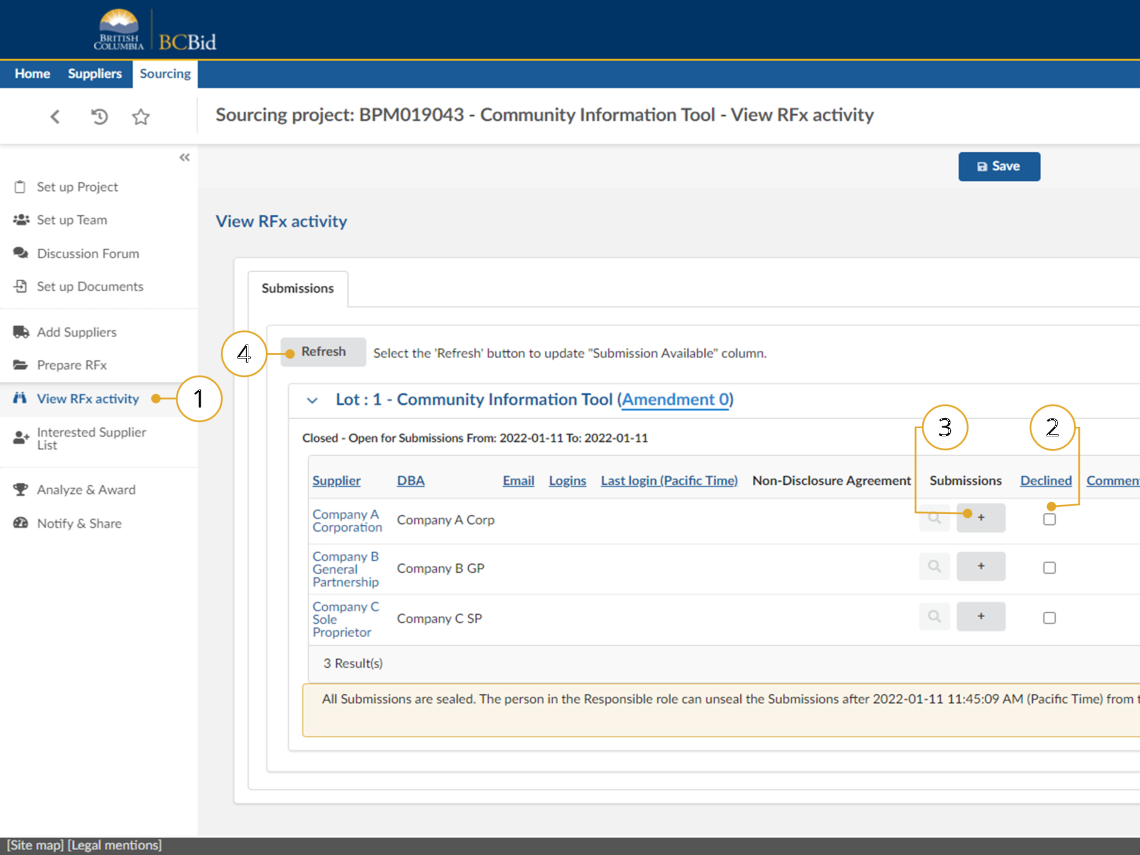
1. Using the left-hand menu, click View RFx Activity.
2. Select the Declined checkbox to track all invited Suppliers who did not provide a Submission.
3. Click the + button in the row of the Supplier whose Submission is being added.
4. Click the Refresh button to update the Submission Available Confirm with “Refresh” column.
The Responsible must upload Submissions to BC Bid for any Opportunity that is not accepting BC Bid Electronic Submissions. Submissions must be uploaded to award, shortlist or not award and to create a Contract Award Notice.
Note: To add Suppliers to the View RFx tab see Adding Suppliers Not On Qualified List.
Click to enlarge image
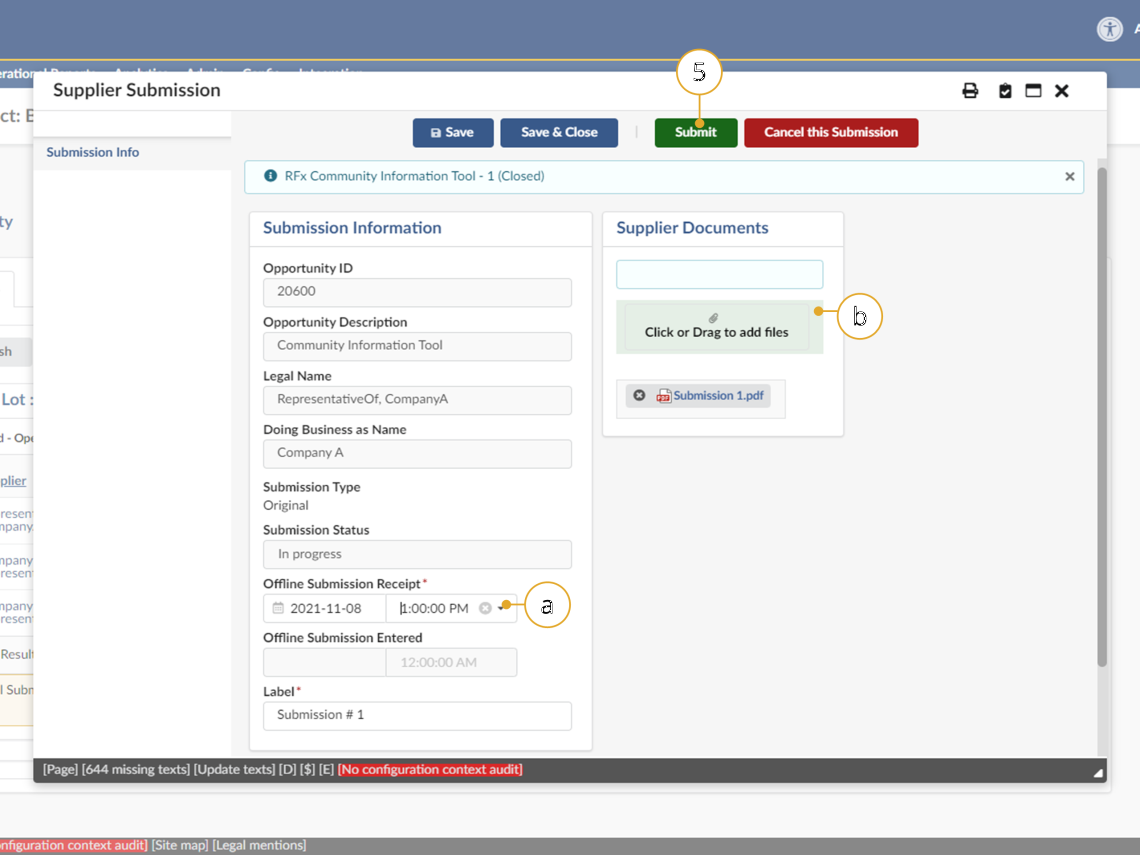
a. Select a date and time under Offline Submission Receipt
Note: Offline submission receipt dates and times entered during the unverified bid results process will auto-populate when entering subsequent hardcopy submissions.
b. Click the Click or Drag to add files button or drag a file to upload a Submission.
Note: document count field will detail the number of documents attached to the submission
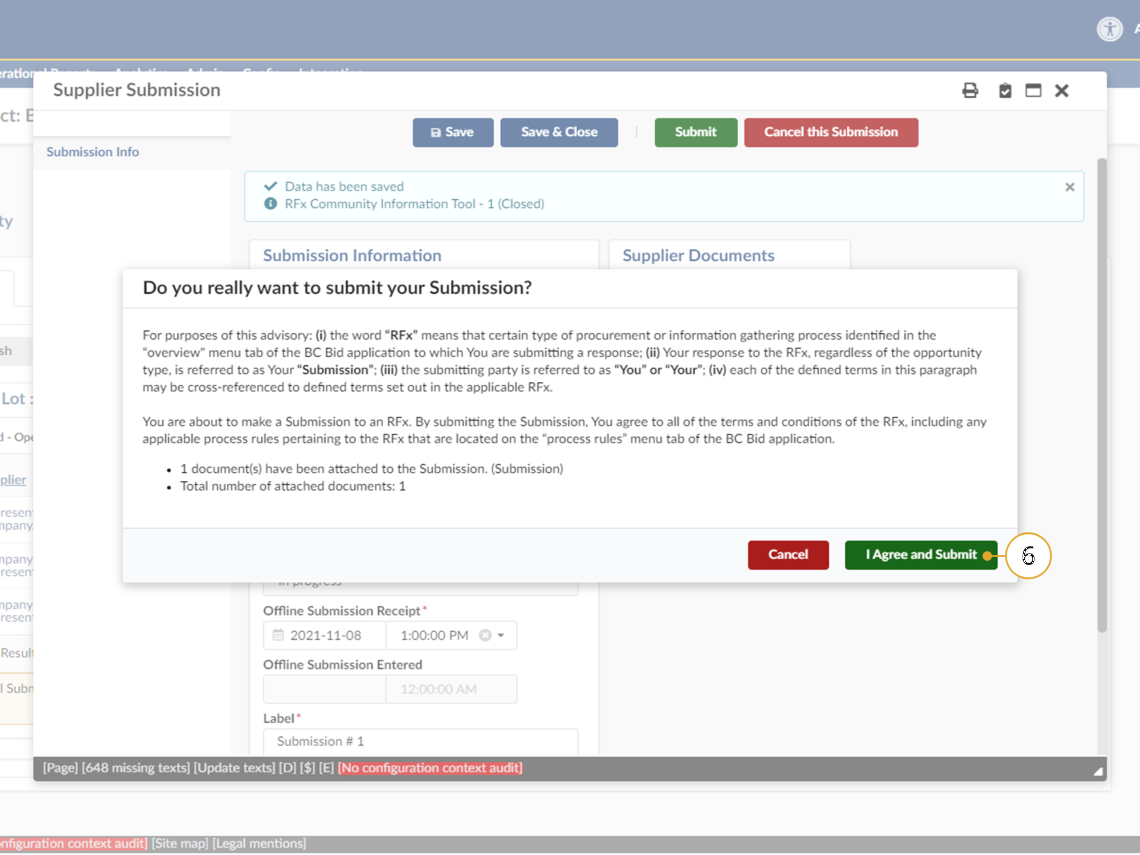
5. Click Submit.
Click to enlarge image
6. Click I Agree and Submit.
Click to enlarge image
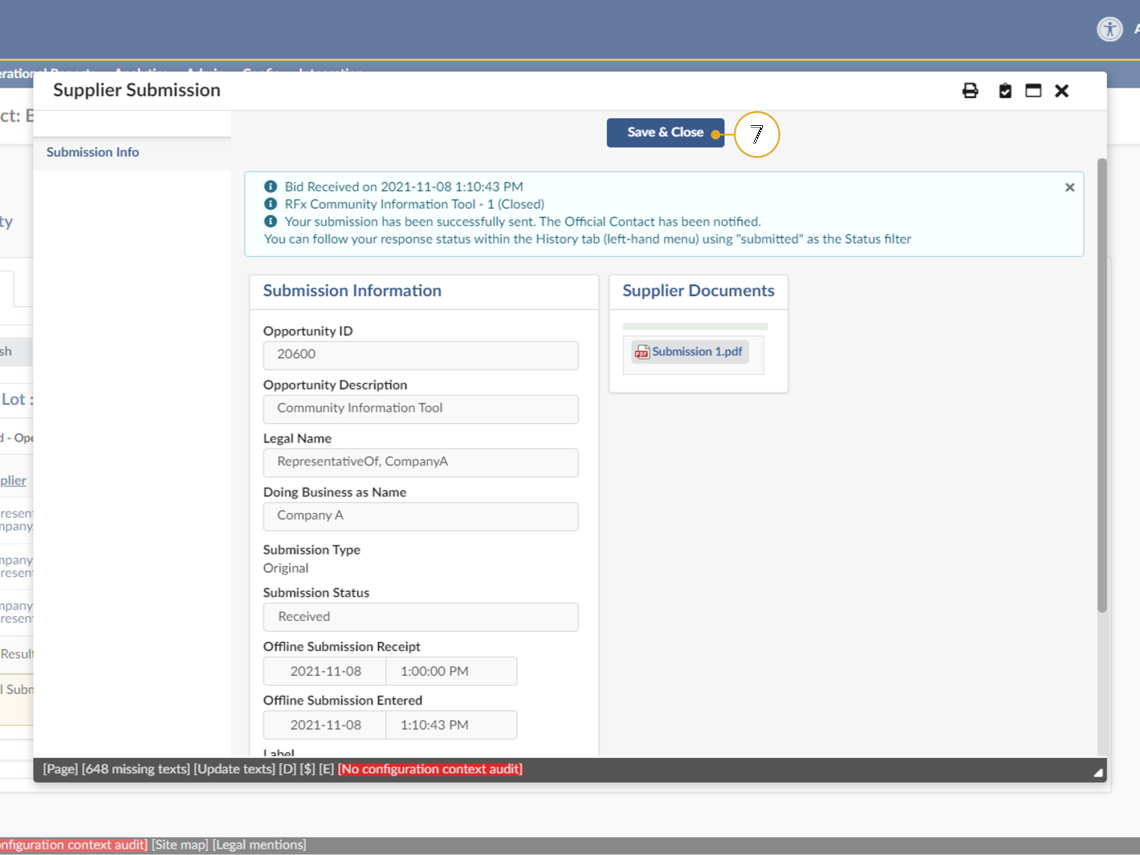
As a Buyer you are not agreeing to this pop-up advisory. It’s a step required to upload a Submission into BC Bid for creation of the contract award notice within your Opportunity.
7. Click Save and Close
Unseal Submissions
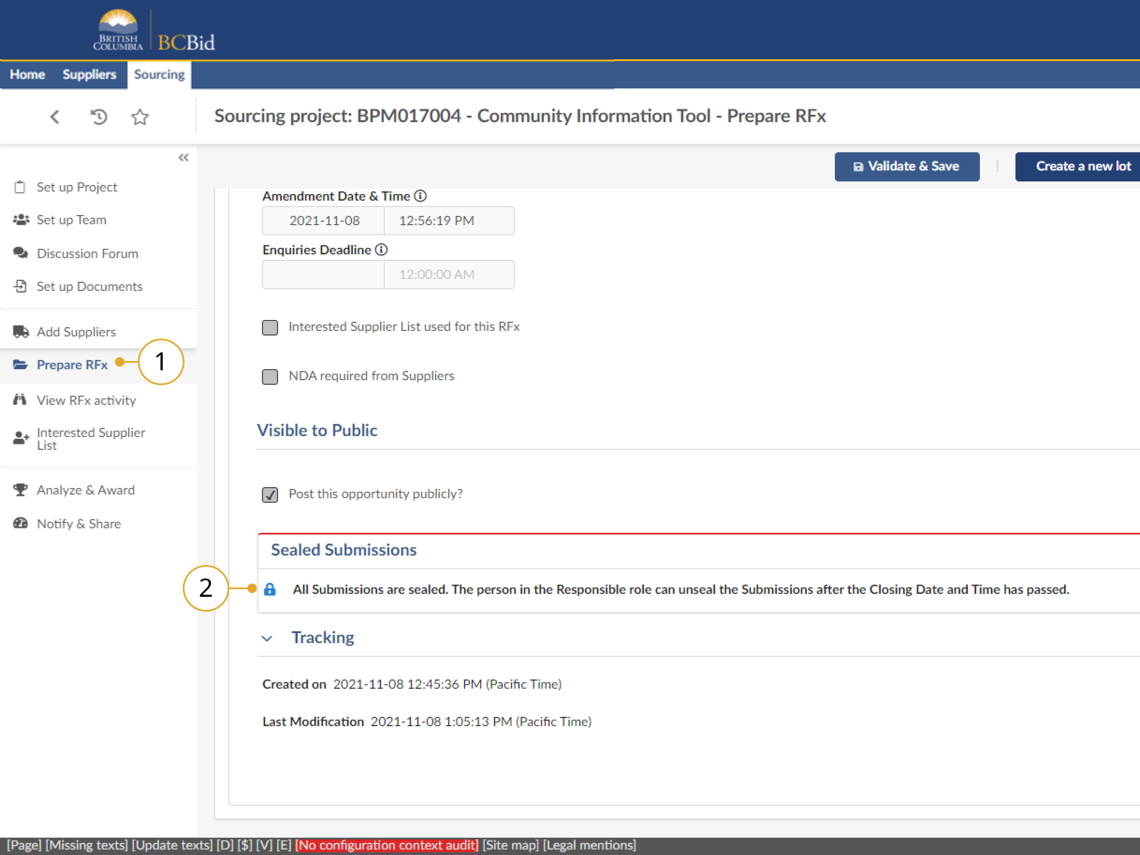
Before unsealing Submissions ensure that all Submissions have been uploaded to the Opportunity. See Upload Submissions.
Click to enlarge image
1. In the left-hand menu, click Prepare RFx, then navigate to the Setup tab.
2. Within Sealed Submissions, click the padlock icon to unseal submissions.
Note: A pop-up will display before unsealing submissions with the following:
‘Have you uploaded ALL offline Submissions into BC Bid? If not, click CANCEL. If you click OK, you will no longer be able to upload offline Submissions. Once unsealed, offline Submissions cannot be uploaded. Please refer to your Buyer Guide for full instructions.’
For Opportunities that do not have sealed submissions, see Step 6 – Analyze and Award.
Subscribe
Enter your email address to subscribe to updates of this page.