
Prepare & register
 Last updated on May 7, 2026
Use this handy step-by-step guide to BC Bid.
Determine who your Supplier Admin will be
Before anyone in your organization registers in BC Bid, it is important to decide who will hold the Supplier Admin role, because the first person who registers will automatically be assigned this account management role.
For an overview of the Supplier Admin role responsibilities, please see the Additional Info on the Supplier Guide page. If needed, the Supplier Admin can transfer the role to a different Additional User within your BC Bid supplier account.
Review business processes
You may need to adapt some of your business processes when using BC Bid to take advantage of new features and improved functions.
Review commodity codes lists
BC Bid uses the United Nations Standard Products and Services Code (UNSPSC). Please note, BC Bid does not utilize all UNSPSC Commodity codes. Commodity codes used in BC Bid are searchable in the application.
You can find more information about the UNSPSC classification structure at https://www.undp.org/unspsc. To determine which UNSPSC codes you can use based on your GSIN codes, see the GSIN to UNSPSC commodity code mapping (XLSM, 331.5KB) document.
Get a Business BCeID
To register, you will need a Business BCeID and agree to the BC Bid terms and conditions before setting up your new account.
A Business BCeID is used to authenticate an organization and its users’ identities. BCeID is used as your unique identifier to login to the BC Bid system.
Suppliers from outside B.C. are invited to register for BC Bid. Those organizations need to obtain Business BCeIDs to register.
Get a Business BCeID
To register for a Business BCeID, a member of your organization who is authorized to act as an administrator (the primary user or Supplier Admin) goes to the BCeID website and follows the registration instructions.
If you have any questions or concerns about applying for a Business BCeID, please contact the BCeID Help Desk.
Access application learning resources
Information Sessions for suppliers were held March 28 and 29, 2022. Sessions on the Invitation to Tender (ITT) for government ministry construction opportunities were held September 27 and 29, 2022. You can view the session recording, and step by step instructions on how to use the application in web, PDF, and video formats, on the Supplier Guide page.
Quick Reference Guides (QRGs) provide high-level reminders to help you navigate BC Bid.
Create a new BC Bid account
To register
- Please review the Prepare & Register section of the Supplier Guide, offering step-by-step instructions on how to register for an account in BC Bid.
- After you review the Supplier Guide, proceed to the BC Bid Public Portal to begin the registration process.
Note: The first individual from a supplier organization to register for an account, holds the main ‘Supplier Admin’ role and is responsible for subscription management and adding additional account users. For a full list of Supplier Admin responsibilities, please see the Additional Info section on the Supplier Guide page.
Once your supplier account is registered, you can log into the application to bid on government opportunities and manage your account and supplier dashboard.
Register - Additional user
This section outlines how an individual user registers their BC Bid account as part of a larger organization. This can only be done after the larger organization has created and registered the user’s BCeID with the company’s BC Bid account.
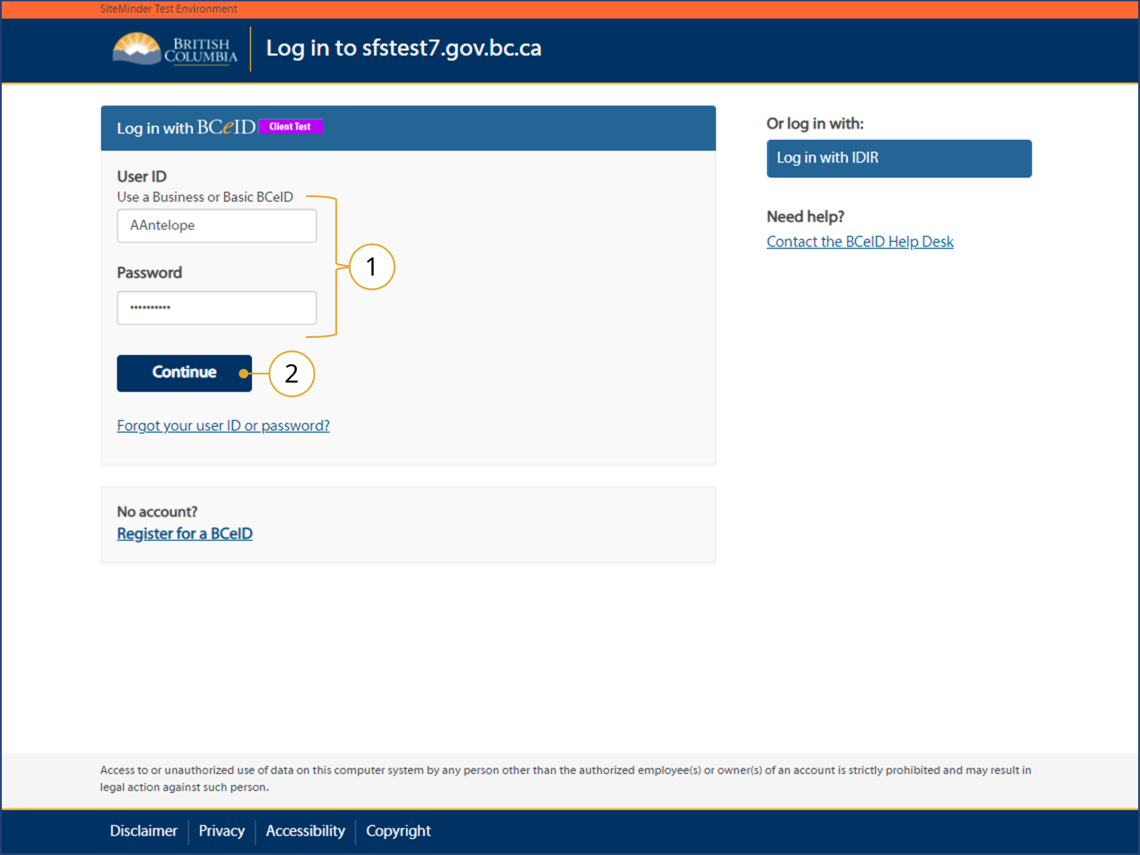
Click to view larger image
1. Log in with the Business BCeID User ID and Password created by the Account/Profile Manager in the BCeID application from the Add Additional Users Step.
2. Click Continue
See Appendix 4 for information on Additional User responsibilities.
Note: To get a Business BCeID linked to the organization have the BCeID Account Manager complete the Add Additional Users step in the Supplier Account Management Guide.

Click to view larger image
3. When logging into BC Bid, the BCeID Terms and Conditions will need to be accepted.
a. Review the terms.
b. Click the I accept the terms and conditions checkbox.
c. Click Continue.
If the BCeID is an existing account, the next steps have likely been completed, go to Step 8.
4. Set up the BCeID password reset questions.
a. Click Continue
5. On the Password Details Processing page.
a. Click Continue.
6. Complete the BCeID password change.
a. Click Continue.
7. On the Password Changed page.
a. Click Continue.
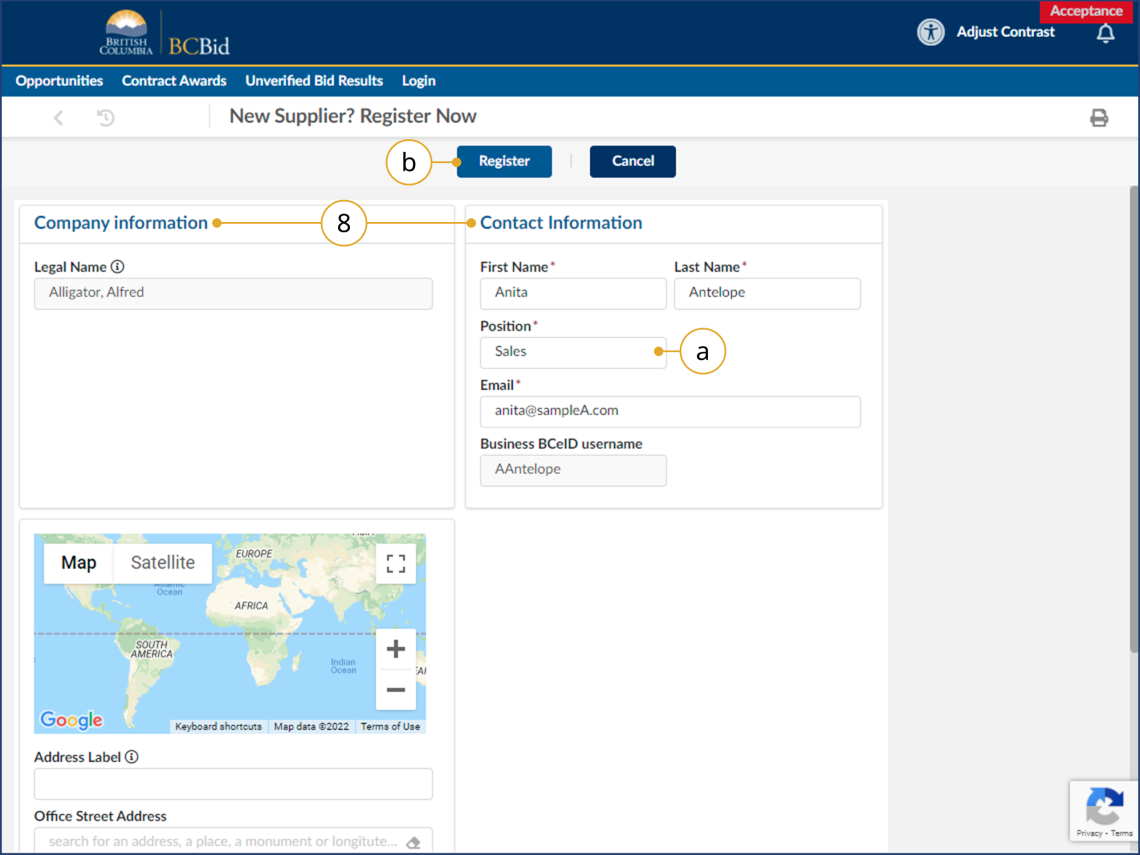
Click to view larger image
8. Confirm the Company Information and Contact Information. The information is imported from BCeID. Update the information as needed.
a. Complete the Position field.
b. Click Register.
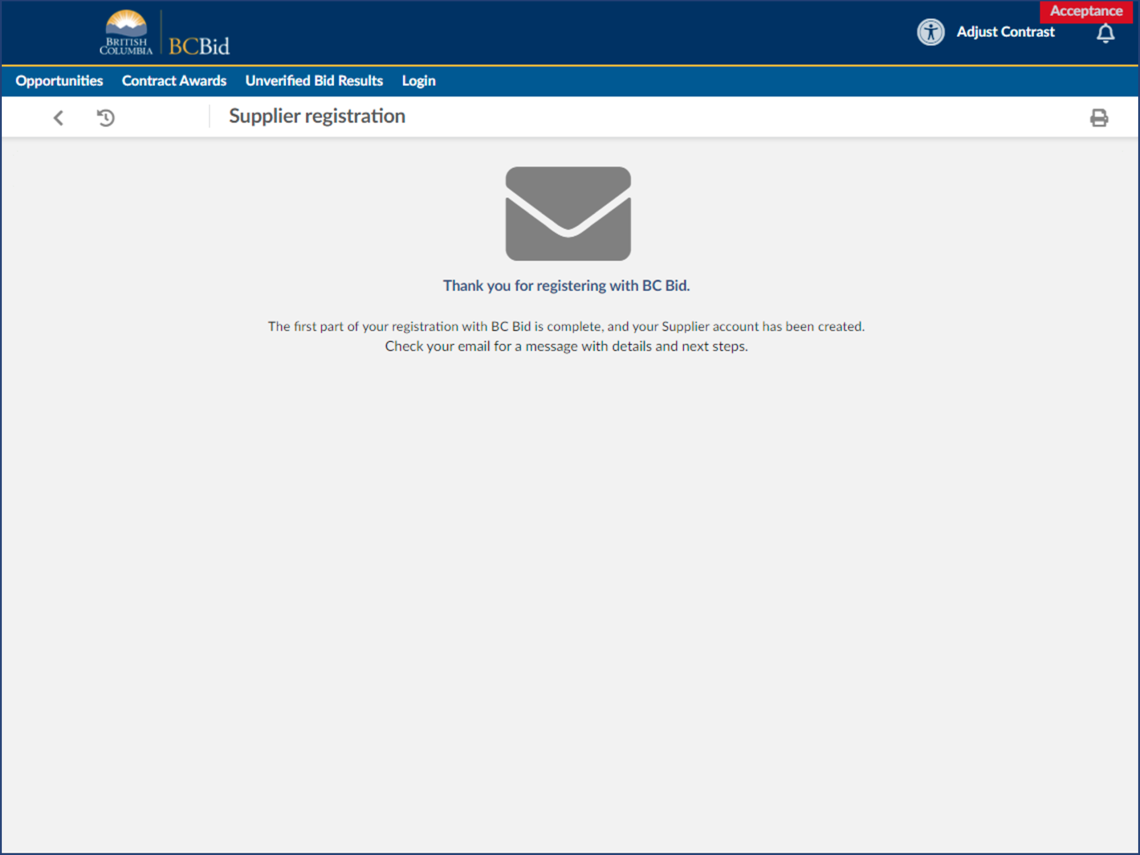
Click to view larger image
9. A confirmation screen of the registration will be displayed.
10. The Supplier Admin for the company will need to activate the account in BC Bid. The Supplier Admin will receive an email stating that there is an account for activation.
11. Once approved by the Supplier Admin, an email will be sent with further instructions.
If users log in before the Supplier Admin activates the account, they will receive an Access Denied message. The Supplier Admin will need to follow the Approve Additional Users Step.
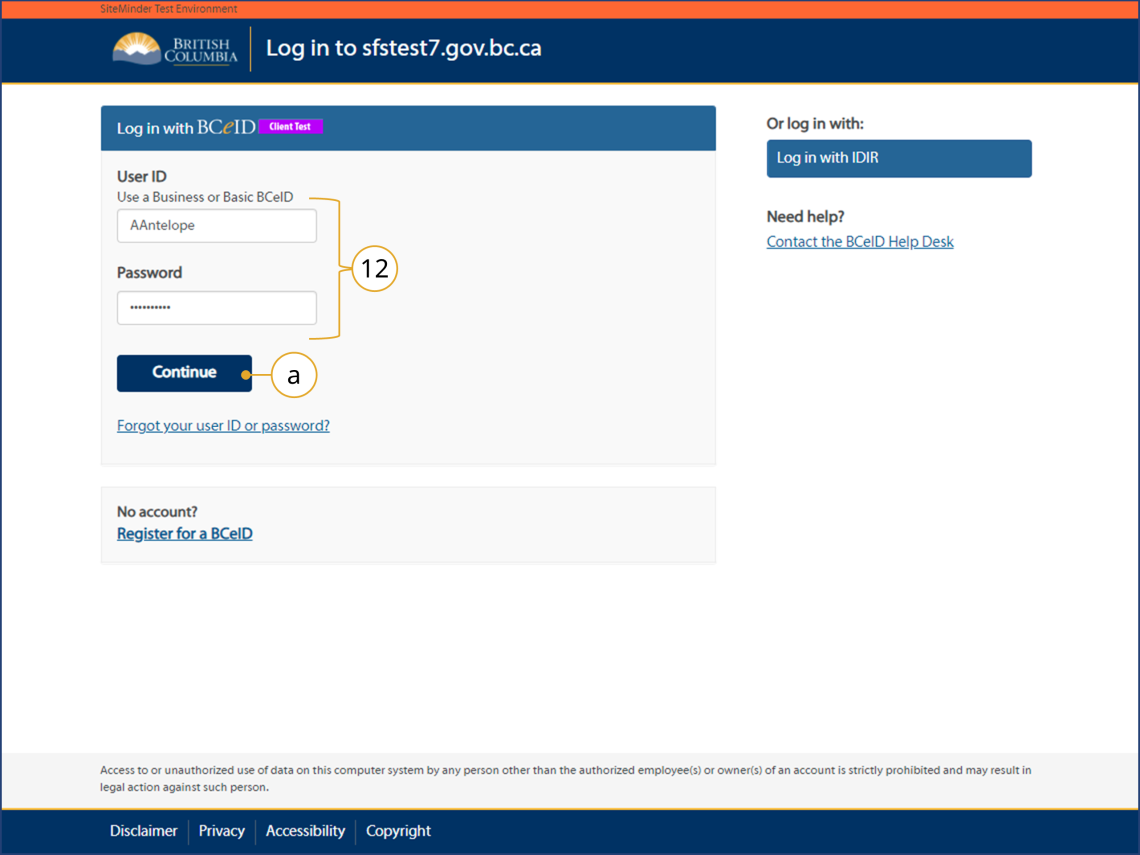
Click to view larger image
12. Once approved by the BC Bid Supplier Admin, log in to BC Bid with BCeID and password.
a. Click Continue.
If an Access Denied message is seen when logging in, check that the account has been activated by the Supplier Admin.
If you receive an Access Denied message at the Supplier registration form, make sure you are using an active Business BCeID and not a Basic BCeID.
To confirm your BCeID account type, log on to the BCeID website and click on your name (top right corner) to display your account information including your BCeID account type (basic, business, personal).
If you do not have a Business BCeID, visit the Register for a Business BCeID page to start the process. Contact the BC Bid Help Desk and provide your Business BCeID username.
Click to view larger image
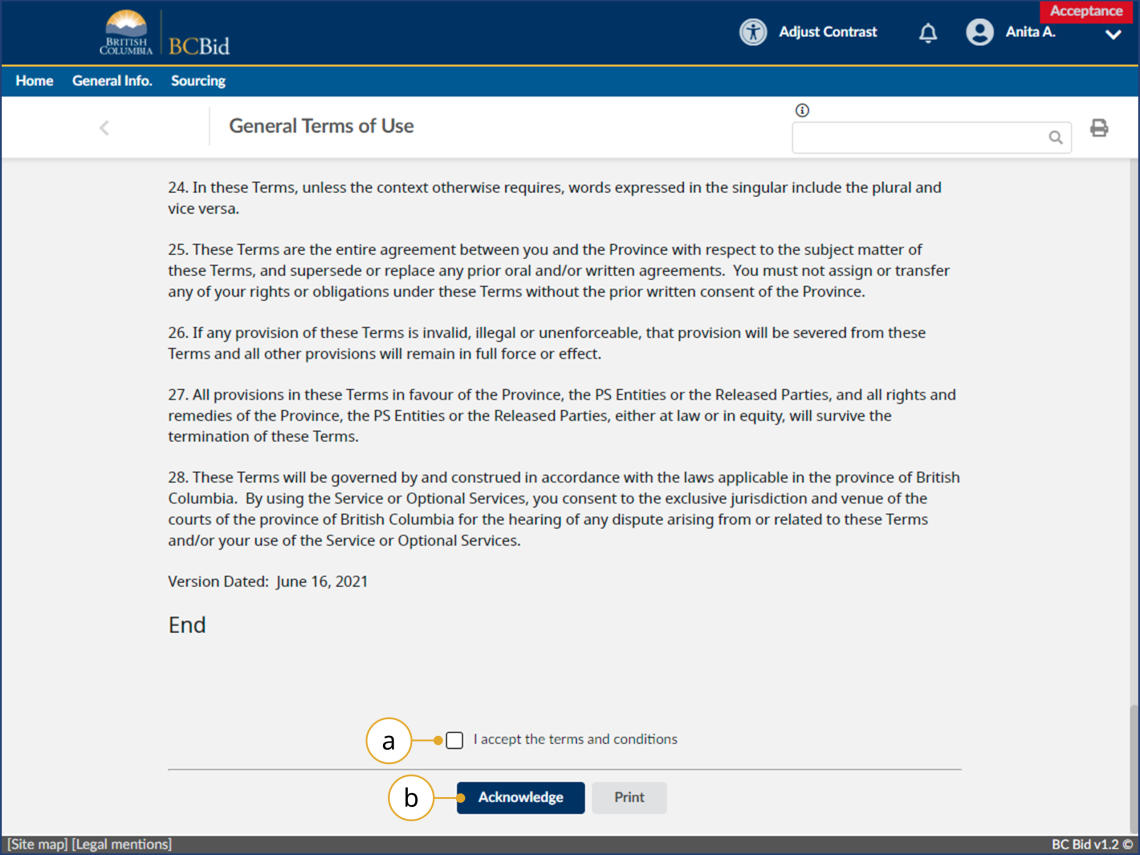
13. Review and accept the BC Bid terms of use.
a. Click the "I accept the terms and conditions" checkbox.
b. Click "Acknowledge".
Click to view larger image
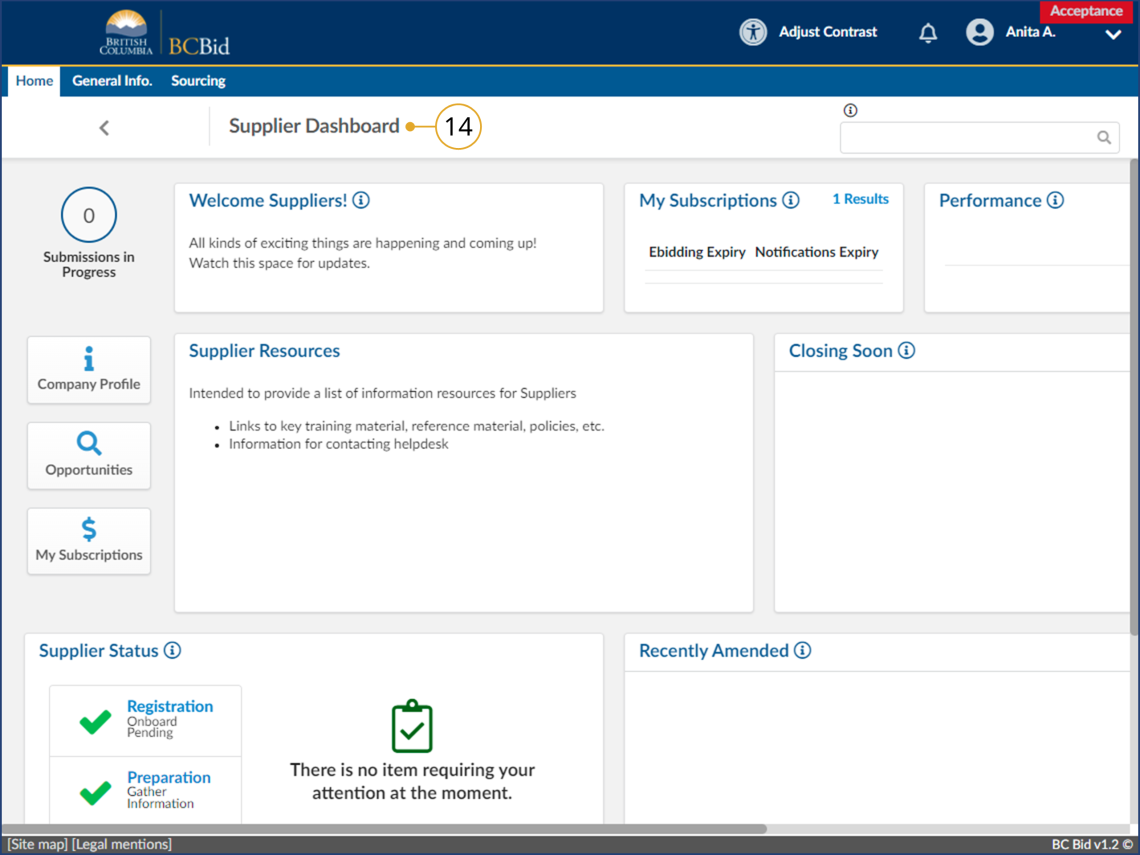
14. The Supplier Dashboard will be displayed.